Savings Plans for EC2: Best Practices


Want to save up to 72% on your AWS EC2 costs? EC2 Savings Plans can help you achieve just that by committing to a consistent hourly spend over one or three years. These plans automatically apply discounts to your eligible usage, offering two main options:
- Compute Savings Plans: Flexible across regions, instance families, and even services like AWS Lambda and Fargate, with savings of up to 66%.
- EC2 Instance Savings Plans: Higher discounts (up to 72%), but limited to specific instance families and regions.
Key Steps to Get Started:
- Evaluate Workloads: Use AWS tools like the Purchase Analyzer to identify stable, predictable usage patterns.
- Choose a Plan: Decide between flexibility (Compute Plans) or deeper discounts (Instance Plans).
- Commit Wisely: Start with 70–80% of your baseline usage to avoid overcommitting.
- Monitor Performance: Track metrics like utilization, coverage, and savings to optimize your plan.
Quick Tip: AWS now offers a 7-day return policy for smaller plans under $100/hour, giving you room to test your commitment.

EC2 Savings Plans Comparison: Compute vs Instance Plans
How to Purchase AWS EC2 Savings Plan | Step by Step
Evaluating Your EC2 Workloads
Before committing to a Savings Plan, it's crucial to understand how you're using EC2. Start by identifying your predictable baseline usage - the consistent compute resources you rely on around the clock.
Reviewing Usage Patterns
To begin, analyze your historical usage with the AWS Purchase Analyzer. This tool lets you explore "what-if" scenarios by applying potential Savings Plans to past usage. It provides estimates on costs, coverage, and utilization, helping you see how a Savings Plan might impact your expenses.
When using the tool, select a lookback period of 7, 30, or 60 days. If you've recently changed instance types or migrated workloads, choose a period that reflects your current setup - this avoids basing decisions on outdated data. Note that AWS generates Savings Plan recommendations only if your average On-Demand spend is at least $0.10 per hour during the selected period.
While you can compare Opsima and AWS Cost Explorer to see how native tools stack up against third-party optimization, the Purchase Analyzer remains a solid starting point for basic analysis. Focus on three key charts in the Purchase Analyzer:
- Cost: Compares On-Demand costs with Savings Plan estimates.
- Coverage: Shows the percentage of eligible usage covered by the plan.
- Utilization: Highlights how much of your commitment is being used.
Make sure to exclude one-time usage spikes and use the "exclude expiring Savings Plans" filter to get a clearer picture of how a new purchase would affect your costs.
These insights will help you evaluate workload stability and determine the right level of commitment.
Determining Workload Stability
Savings Plans work on a "use it or lose it" model - if you don’t use your commitment in a given hour, it doesn’t carry over. This makes workload stability a key factor in deciding whether a long-term commitment is right for you.
Ask yourself: Will your workloads stay in the same AWS Region and instance family? If so, EC2 Instance Savings Plans offer discounts of up to 72%, but they lock you into those specific attributes. If your architecture is evolving - like moving from EC2 to Fargate or Lambda - Compute Savings Plans provide more flexibility, though the discount is slightly lower at up to 66%.
Here’s a quick benchmark to keep in mind:
- For a 1-year reservation with a 30% discount, you need to run the workload for at least 9 months to break even.
- For a 3-year reservation with a 50% discount, the breakeven point is 18 months.
This gives you some flexibility for changes while still benefiting from the savings.
Estimating Your Commitment Amount
Once you’ve identified stable workloads, calculate your hourly commitment. A good rule of thumb is to commit to 70–80% of your baseline usage. This cushion helps you avoid over-committing and wasting money on unused capacity.
Remember, your commitment is based on the discounted Savings Plan rate, not the original On-Demand cost. Start small - AWS allows commitments as low as $0.00001 per hour. It’s better to under-commit and scale up later than to over-commit and lose money. Plus, starting in March 2024, AWS offers a 7-day return policy for Savings Plans with hourly commitments of $100 or less, as long as the return happens within the same calendar month.
To minimize risk, consider purchasing in small increments, like 5% of your monthly usage. This lets you test workload stability and leaves room for adjustments, such as right-sizing instances, later on.
Buying and Setting Up EC2 Savings Plans
Once you've assessed your workloads and determined your usage, the next step is purchasing and configuring EC2 Savings Plans. Here's how to get started.
Purchase Process
Before diving in, make sure AWS Cost Explorer is enabled in your account. Keep in mind, it might take up to 24 hours for usage data to populate.
Head to the AWS Billing and Cost Management console and click on Purchase Savings Plans. You'll find recommendations tailored to your historical usage patterns.
Here’s what you’ll need to configure during the purchase process:
- Plan Type: Decide between Compute Savings Plans, Reserved Instances, or EC2 Instance Savings Plans for the right balance of flexibility and savings.
- Term Length: Commit to either 1 year (31,536,000 seconds) or 3 years (94,608,000 seconds), with longer terms offering better discounts.
- Hourly Commitment: Specify your hourly commitment in dollars at the Savings Plan rate.
- Payment Option: Choose from All Upfront (maximum discount), Partial Upfront (50% upfront, the rest billed monthly), or No Upfront (fully billed monthly).
- Optional Start Date: If needed, set a future start date in UTC. This is useful if you're timing the plan to begin after an existing Reserved Instance expires.
Once you've reviewed the total commitment and upfront costs, hit Submit Order to finalize your purchase.
After completing the purchase, configure the plan settings based on your needs.
Configuration Options
For EC2 Instance Savings Plans, you’ll need to select a specific AWS Region (e.g., us-east-1) and an instance family (e.g., m5). While this locks you into a particular region and instance family, you still have the flexibility to adjust instance size, operating system, and tenancy within that family.
On the other hand, Compute Savings Plans offer greater adaptability. They automatically apply across all regions, instance families, and even other services like AWS Fargate and Lambda.
If you're juggling multiple plans, AWS applies them in a specific sequence: Reserved Instances first, followed by EC2 Instance Savings Plans, and finally Compute Savings Plans.
Setup Best Practices
After configuration, follow these best practices to maximize the benefits of your Savings Plans.
Start with a cautious commitment level. You can always add new plans later, but existing commitments cannot be reduced (except within the 7-day return window for plans under $100/hour). Use the Purchase Analyzer to exclude expiring plans from your calculations, providing a clearer picture of your coverage once those commitments end.
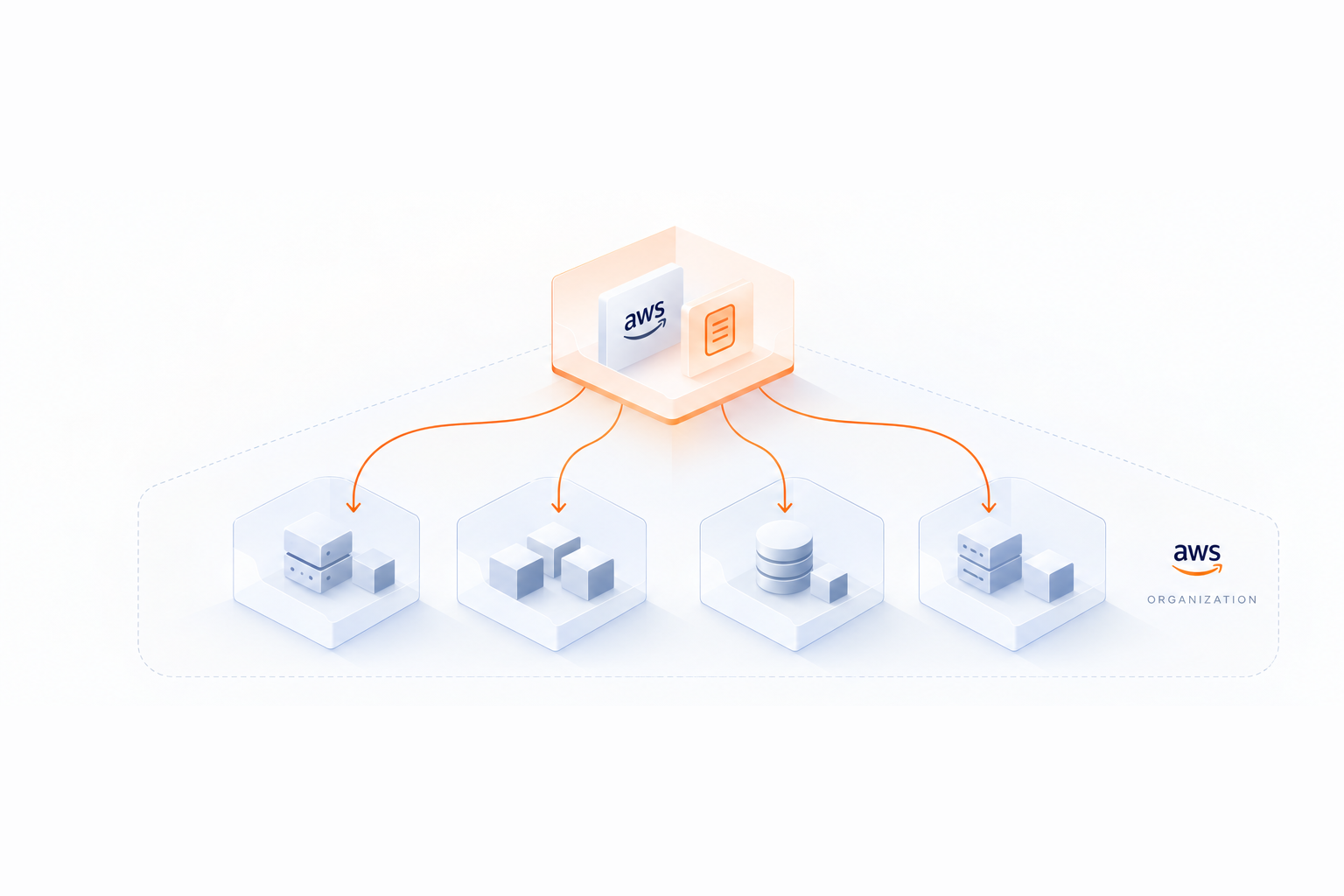
If you're managing costs across multiple accounts under AWS Organizations, ensure that sharing is enabled. This ensures that Savings Plan benefits apply across all linked accounts. To avoid gaps in coverage, consider scheduling future purchases to begin as soon as existing plans expire.
Tracking Savings Plans Performance
Once your Savings Plans are set up, keeping an eye on their performance is key to maintaining cost efficiency. Regular monitoring ensures that you're getting the expected savings and helps you address any issues early before unnecessary expenses pile up.
Metrics to Monitor
There are four key metrics to track when evaluating your Savings Plans:
- Utilization rate: This measures how much of your hourly commitment is being used for eligible workloads. For instance, if you've committed to $10.00/hour and your usage at Savings Plans rates totals $9.80 in an hour, your utilization rate is 98%.
- Coverage percentage: This indicates how much of your eligible On-Demand usage is covered by your Savings Plans. For example, if you have 10 identical instances and 9 are covered, your coverage is 90%.
- Total net savings: This represents the dollar amount saved by comparing what you would have spent at On-Demand rates to what you actually spent with Savings Plans.
- On-demand spend not covered: This shows the amount of eligible usage billed at full On-Demand rates because it exceeded your commitment. It highlights where you're losing money due to gaps in coverage.
Here’s a quick breakdown of these metrics:
| Metric | Definition | Implication |
|---|---|---|
| Utilization | % of commitment spend used | Indicates if you're over-committed and wasting money |
| Coverage | % of eligible usage covered | Shows how much of your usage still incurs full On-Demand pricing |
| Net Savings | (On-Demand Equivalent) - (SP Spend) | The actual dollar value saved |
| Uncovered Spend | $ amount of eligible usage at OD rates | Highlights financial impact of coverage gaps |
These metrics provide a foundation for identifying areas where you can optimize your Savings Plans.
Identifying Underutilization
By analyzing these metrics, you can spot underutilization, which is a common issue with Savings Plans. Since these plans operate on a "use it or lose it" basis, any unused commitment during an hour is essentially wasted.
To address this, use AWS Cost Explorer to examine hourly usage patterns. This tool can reveal times when your commitments exceed your actual usage, such as during weekends or off-peak hours. For EC2 Instance Savings Plans, low utilization might indicate that workloads have shifted to different instance families or regions not covered by the plan. Additionally, if you're using AWS Organizations, confirm that Savings Plans sharing is enabled to maximize efficiency.
Setting up AWS Budgets with automated alerts can help you stay on top of utilization and coverage. For example, you could receive notifications if your utilization drops below 90%. Keep in mind, however, that it may take up to 48 hours for the metrics to update.
AWS Cost Management Tools
AWS offers several tools to help you monitor and optimize your Savings Plans:
- AWS Cost Explorer: This tool provides visual reports on utilization and coverage, with filters for member accounts, regions, and instance families.
- Savings Plans Inventory: This dashboard displays all active, queued, and expired plans along with their commitment amounts and expiration dates. Monitoring expiration dates is crucial to avoid coverage gaps and unexpected cost increases.
-
AWS Cost and Usage Reports (CUR): For more detailed insights, CUR includes line items like
SavingsPlan/SavingsPlanEffectiveCost, which breaks down the actual cost per unit of usage after discounts and upfront fees. - Purchase Analyzer: This feature lets you model potential Savings Plans against historical usage data, typically using a 60-day lookback period. It helps estimate how additional commitments could increase savings and improve coverage.
If you're managing multiple accounts, AWS allows management accounts to aggregate utilization and coverage data across the entire consolidated billing family. For those who prefer automation, tools like Opsima (https://opsima.ai) can handle ongoing management and optimization of AWS commitments, ensuring you consistently achieve the lowest effective rates without manual tracking.
Improving Savings Plans Over Time
As your workloads evolve, your approach to Savings Plans should remain flexible. Adapting your strategy ensures you maintain savings while avoiding rigid commitments that could lead to wasted costs.
Mixing Plan Types for Flexibility
A layered strategy is key to balancing savings and adaptability. Start by using EC2 Instance Savings Plans for your most stable workloads, such as production environments that are unlikely to change. These plans offer discounts of up to 72% off On-Demand rates, making them ideal for predictable usage patterns. To handle workloads that are more variable - like those shifting between instance families, regions, or even services like Fargate and Lambda - add Compute Savings Plans. While these plans offer slightly lower discounts (up to 66% off On-Demand rates), they provide the flexibility to accommodate changing needs.
AWS automatically prioritizes discounts to maximize your savings: Reserved Instances are applied first, followed by EC2 Instance Savings Plans, and finally Compute Savings Plans. For example, you might allocate 70–80% of your stable production workloads to EC2 Instance Savings Plans, while covering 50–60% of more dynamic applications with Compute Savings Plans. For unpredictable peaks, stick with On-Demand pricing - it’s better to pay full price occasionally than to commit to unused capacity. This approach naturally allows for gradual adjustments as your usage evolves.
Adjusting Commitments Gradually
Instead of committing to large Savings Plans upfront, a smart commitment management strategy offers more flexibility. By purchasing plans in smaller increments over time, you can stagger expiration dates and create checkpoints to reassess your usage patterns. For instance, rather than committing $100/hour all at once, you could start with $25/hour each quarter as your confidence in workload stability increases.
When determining the size of new commitments, analyze your daily costs over the last 90 days and use the 10th percentile (P10) as your baseline. This represents the minimum usage level you’re confident won’t decrease. This conservative method allows you to expand commitments later if needed, rather than risk overcommitting.
Set reminders 30, 60, and 90 days before your plans expire. These alerts give you time to review your usage, account for any architectural changes, and queue new plans to activate when old ones expire. This ensures you avoid lapses where usage reverts to costly On-Demand rates.
Automating Savings Plan Management
Managing multiple Savings Plans for evolving workloads can be complex. Without automation, you risk overcommitting (leading to wasted costs) or undercommitting (resulting in higher On-Demand charges). Automation simplifies this process by dynamically adjusting to usage patterns in near real-time, eliminating the need for constant manual oversight.
Opsima (https://opsima.ai) is an automated cost-optimization tool for AWS that continuously adjusts Savings Plans and Reserved Instances. By using adaptive allocation, Opsima helps organizations reduce costs by up to 40%, ensuring you always pay the lowest effective rate for your usage without altering your infrastructure. The platform spreads commitments over time, minimizing lock-in risks while maintaining flexibility.
This approach is especially helpful for businesses transitioning from EC2 to containerized or serverless architectures. Opsima ensures discounts remain in place during these shifts without requiring manual reconfiguration. The service supports AWS offerings like EC2, ECS, Lambda, RDS, ElastiCache, and more, all while maintaining data privacy. With a quick 15-minute onboarding process and a flexible cancellation policy, Opsima removes the operational hassle of managing commitments, allowing your engineering team to focus on technical decisions rather than cost management.
Conclusion
EC2 Savings Plans offer the potential to reduce AWS compute costs by as much as 72%, provided your fixed hourly commitments align closely with actual usage patterns.
To maximize savings while avoiding unnecessary costs, start by committing to 70–80% of your minimum hourly spend. This strategy helps maintain utilization rates between 92% and 97%, leaving flexibility for unexpected changes. This approach is critical, as about 53% of organizations end up paying for unused capacity.
For different workload needs, tailor your choice of Savings Plans. EC2 Instance Savings Plans are ideal for steady production workloads, offering up to 72% savings. Meanwhile, Compute Savings Plans work better for dynamic or fluctuating environments, providing up to 66% savings.
Ongoing monitoring is essential. Set alerts to notify you 30, 60, and 90 days before plan expirations, and conduct quarterly reviews. Even small mismatches in hourly commitments can lead to significant waste over time.
The key to success lies in treating Savings Plans as a continuous engineering task rather than a one-time financial choice. Whether you manage this process manually or use tools like Opsima (https://opsima.ai) for automated optimization, the goal is to maintain a balance between your fixed-dollar commitments and your evolving AWS usage. This proactive approach ensures your commitments adapt to changing needs, keeping costs in check while maximizing savings.
FAQs
How do I choose between Compute and EC2 Instance Savings Plans?
When deciding, it all comes down to your workload requirements.
Compute Savings Plans are perfect if you need flexibility. They apply discounts across various instance families, sizes, operating systems, regions, and even services like Fargate and Lambda. This makes them a great fit for environments where workloads are constantly changing.
On the other hand, EC2 Instance Savings Plans offer greater discounts but come with a catch - you'll need to commit to specific instance families within a region. These are best suited for stable and predictable workloads where consistency is key.
In short, go with Compute Savings Plans for adaptability, and choose EC2 Instance Savings Plans if your workloads are fixed and you're looking for maximum savings.
What hourly commitment should I start with to avoid overcommitting?
When considering Savings Plans, it's smart to start with a cautious approach. Begin by committing to an hourly spend that aligns with your current average usage. For example, if your EC2 usage typically costs $10 per hour, set your initial commitment at $10/hour. Tools like AWS Cost Explorer can help you review past usage patterns to make an informed decision. By starting conservatively, you reduce the risk of overcommitting and incurring unnecessary costs. Plus, you always have the flexibility to adjust your commitment upward as your needs grow.
What should I do if my Savings Plan utilization drops over time?
If your Savings Plan usage drops, it's time to take a closer look at your commitments. Over-committing can lead to unnecessary costs, so it's important to regularly evaluate your Savings Plan coverage and usage data to spot any mismatches. If you notice gaps, consider adjusting or reducing your commitments to better match your current usage trends. By keeping a regular eye on your plans and optimizing them as needed, you can cut down on unused commitments, make the most of your savings, and keep your expenses in check with your actual needs.