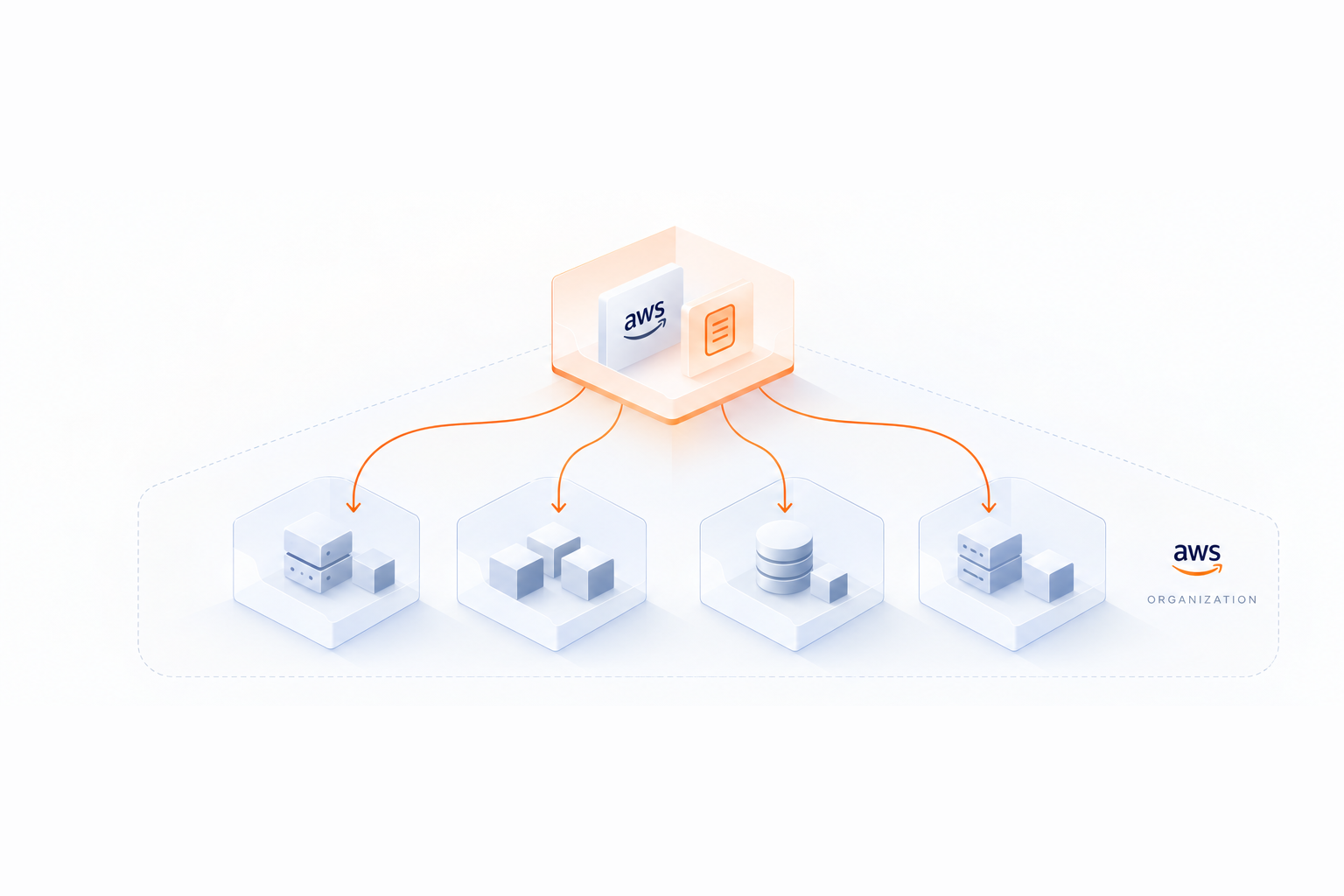
How AWS Cost Allocation Tags Work


AWS Cost Allocation Tags help you track and categorize cloud spending by assigning key-value labels (e.g., Department: Sales) to resources. These tags provide detailed cost visibility, enabling you to allocate expenses to teams, projects, or applications. Here's what you need to know:
-
Two Types of Tags:
- User-defined tags: Custom labels you create (e.g.,
Project: WebsiteRedesign). - AWS-generated tags: Automatically applied (e.g.,
aws:createdBy).
- User-defined tags: Custom labels you create (e.g.,
-
Setup Process:
- Attach tags to resources via the AWS Console, CLI, SDKs, or CloudFormation.
- Activate tags in the Billing console to include them in cost reports (takes ~24 hours).
-
Why Use Tags:
- Gain resource-level cost visibility.
- Enable showback (reporting costs to teams) or chargeback (assigning costs to teams).
- Identify cost drivers, optimize spending, and track ROI.
-
Best Practices:
- Use a consistent, case-sensitive tagging strategy (e.g.,
anycompany:cost-center). - Regularly audit tags with tools like AWS Config and Tag Editor.
- Avoid sensitive data in tags (tags appear in billing reports).
- Use a consistent, case-sensitive tagging strategy (e.g.,
AWS Cost Explorer and Cost Allocation Reports let you analyze spending by tags, helping you group, filter, and allocate costs efficiently. For more detailed insights, use Cost and Usage Reports (CUR), which offer granular data and support tools like Athena.
Bottom Line: Tags simplify AWS cost management by linking expenses to specific teams, projects, or applications. A clear tagging strategy ensures accurate tracking and better financial accountability.
How to use cost allocation tags from Cost Explorer to see resource specific cost
Types of AWS Cost Allocation Tags
AWS provides two types of tags for tracking costs: AWS‐generated tags and user‐defined tags. Both must be activated in the Billing console before use. The main difference between them lies in who creates the tags.
AWS‐generated tags don’t count toward the 50-tag limit per resource, while user‐defined tags do. In cost allocation reports, AWS‐generated tags are prefixed with aws:, while user‐defined tags carry the user: prefix.
"The key benefit of using AWS-generated tag is that once it is activated, all of the member accounts will have it enabled by default."
– Harsh Patel, Associate Cloud Developer, AWS
When activated by the management account, tags automatically apply across all member accounts. Billing reports can include up to 500 active tag keys. Understanding these distinctions is crucial for effective cost management.
AWS‐Generated Tags
The primary AWS‐generated tag is aws:createdBy, which AWS applies automatically to supported resources when activated. This tag identifies who created a resource, including details like the account type, account ID, and specific user or role (e.g., IAMUser:AIDACKCEVSQ6C2EXAMPLE:exampleUser).
These tags are visible only in the Billing and Cost Management console and reports - they don’t appear in the standard AWS console or the Tag Editor. Additionally, they cannot be edited or deleted. AWS generates the createdBy tag using CloudTrail logs, though occasional service issues may result in incomplete tagging.
The createdBy tag is available in specific regions, such as us-east-1, us-west-2, eu-central-1, and ap-southeast-1, where AWS regional pricing can vary significantly, and supports services like EC2, S3, RDS, CloudFormation, and Redshift. Due to these limitations, combining AWS‐generated tags with user‐defined tags ensures more comprehensive tracking.
User‐Defined Tags
User‐defined tags are custom labels tailored to reflect your organization’s structure, such as Department: Sales, Project: WebsiteRedesign, or Environment: Production.
These tags are case-sensitive (e.g., CostCenter vs. costcenter), so maintaining a standardized format is essential to avoid fragmented data. AWS recommends starting tag keys with your organization’s abbreviation followed by a colon, such as anycompany:cost-center.
"Use a standardized, case-sensitive format for tags, and apply it consistently across all resource types."
– AWS Documentation
User‐defined tags can be managed through the AWS Tag Editor, which allows bulk application of tags across multiple regions and services. Be cautious not to include sensitive information, such as personally identifiable data, in tag keys or values, as these appear in billing reports.
How to Set Up and Activate Cost Allocation Tags

AWS Cost Allocation Tags Setup and Activation Process
This section explains the process of setting up and activating cost allocation tags. These tags require a two-step process: first, you attach them to resources, and then you activate them in the Billing console to include them in cost reports.
Creating and Attaching Tags to Resources
You can add tags to AWS resources using several methods. For manual tagging, the AWS Management Console is your go-to tool. You can add tags during resource creation or by navigating to the "Properties" or "Tags" tab of an existing resource. For managing tags across multiple services and regions, the AWS Tag Editor (found under "Resource Groups & Tag Editor") allows you to search for resources and apply tags to multiple items at once.
If you're working with Infrastructure as Code, AWS CloudFormation templates let you define tags directly in the Properties section of each resource, ensuring tags are applied automatically. For programmatic tagging, the AWS CLI and SDKs offer commands like put-bucket-tagging for S3 or the more general TagResource API.
Each tag consists of a key (e.g., "CostCenter") and an optional value (e.g., "Engineering"). Keep in mind that tag keys may take up to 24 hours to appear in the Billing console.
After attaching tags, the next step is to activate them in the Billing console.
Activating Tags in the Billing Console
To make tags visible in AWS Cost Explorer and native billing tools, they must be activated. Only the management account in an AWS organization (or a standalone account) has the required permissions to activate tags.
To activate user-defined tags, log in to the Billing console, go to Cost allocation tags in the sidebar, select the tag keys you want to track, and click Activate. For AWS-generated tags like aws:createdBy, follow the same process under the AWS-generated cost allocation tags section. Once activated, it can take up to 24 hours for the tags to appear in your reports and for their status to update to Active.
You can activate up to 500 tag keys for billing purposes. If you need to apply tags to historical data, AWS offers backfilling for up to 12 months, provided the tags were already attached to resources during that period. To request a backfill, go to the Cost allocation tags section, choose Backfill tags, and select the start month. Note that new backfill requests can only be made once every 24 hours.
Here’s a quick summary of the tools and methods for adding and activating tags:
| Method | Tool/Service | Description |
|---|---|---|
| Manual | AWS Management Console | Add tags during resource creation or via the "Properties" or "Tags" tab. |
| Bulk | AWS Tag Editor | Search for resources across regions and services to manage tags in bulk. |
| IaC | AWS CloudFormation | Define tags in YAML or JSON templates under the Properties section. |
| Programmatic | AWS CLI / SDKs | Use commands like put-bucket-tagging or the TagResource API to add tags. |
| Activation | Billing Console | Activate tag keys in the "Cost allocation tags" section of the Billing console. |
Using Tags for Cost Analysis and Optimization
Once you've activated tags in the AWS Billing console, you can use tools like AWS Cost Explorer and cost allocation reports to better understand and manage your cloud expenses. These tools leverage tagged resources to provide detailed cost tracking and help you allocate resources more effectively.
Filtering and Grouping Costs in Cost Explorer
AWS Cost Explorer allows you to break down your spending by tag keys and their corresponding values. For example, you can filter costs to focus only on resources tagged as part of your "Production" environment or linked to a specific project. The "Group by" feature takes this further by offering a side-by-side comparison of spending across all values of a tag key. For instance, grouping by a tag like Department could display costs for teams such as Engineering, Marketing, and Sales, helping you pinpoint which areas are driving higher expenses.
Cost Explorer simplifies comparisons by logically combining filters: it applies an "OR" condition within each tag and an "AND" condition across different dimensions. You can even save these customized views for quick reference during monthly reviews. While Cost Explorer provides a visual summary of your expenses, more detailed insights can be gained through cost reports.
Generating Cost Allocation Reports
Cost allocation reports are delivered as CSV files to an Amazon S3 bucket that you own. AWS generates these reports multiple times a day with estimates and finalizes them at the end of each month. Each report includes a column for every activated tag key, showing costs for both tagged and untagged resources.
The reports also highlight unallocated costs, which might stem from untagged resources, unsupported services, or one-time charges like upfront payments for Reserved Instances or Savings Plans.
"The Cost Allocation Report will contain one additional column for each of the tag keys that you selected... The column will be blank if the AWS resource doesn't happen to have a value for the key"
– Jeff Barr, Chief Evangelist at AWS
AWS now encourages users to switch to Cost and Usage Reports (CUR) 2.0 instead of relying on the older monthly cost allocation reports. CUR 2.0 offers more detailed data in Parquet format, making it compatible with Athena queries. It also provides hourly, daily, or monthly granularity. While generating these reports is free, you will incur standard S3 storage charges for the bucket where they are stored. You can create up to 10 reports per AWS account, and the first report is typically ready within 24 hours of setup.
Best Practices for Cost Allocation Tags
Establishing a Tagging Strategy
Getting your tagging strategy right begins with a tagging dictionary. This dictionary organizes tag keys based on their purpose - such as Business, Technical, Automation, and Security. This structure gives teams clear guidance on which tags to use and when to apply them.
Consistency is key when it comes to naming standards. AWS tags are case-sensitive, so a tag labeled CostCenter won’t group with one labeled costcenter in billing reports. To avoid confusion, stick to a uniform format across all resources. For example, use lowercase letters, hyphens to separate words, and add a prefix to identify your organization. A good example would be anycompany:cost-center, which helps clarify ownership and avoids conflicts.
To ensure accountability, use a RACI matrix to define tag ownership. This approach assigns teams specific roles for strategy, maintenance, and implementation. Store your tagging schema in a version-controlled repository that’s accessible to all stakeholders. This way, everyone operates from the same guidelines, and any updates are easy to track.
Enforcement is another essential piece of the puzzle. A two-layer approach works best. First, Service Control Policies (SCPs) can block the creation of non-compliant resources. For example, you could deny the "RunInstances" action if a mandatory CostCenter tag is missing. Second, tools like AWS Config and Tag Editor can help identify and fix untagged resources already in use.
"A mix of [top-down and bottom-up] strategies will likely be the most successful approach." - AWS Cloud Financial Management Blog
Be cautious about what information you include in tags. Avoid using personally identifiable information (PII) or confidential data, as tags appear in billing reports and are accessible across many AWS services. It’s better to over-tag initially to ensure you capture all necessary analysis dimensions. Think of tagging as a continuous process - start with the most critical tags and expand as your business needs grow.
Once your tagging framework is up and running, make it a habit to review and update tags regularly. This ensures your cost-management efforts remain accurate and effective.
Regularly Reviewing and Updating Tags
To keep your cost tracking accurate, it’s important to regularly audit and update your tagging strategy. Resource usage and business needs change over time, and your tagging approach needs to keep up. Since tags only track costs from the moment they’re activated, frequent reviews help you capture accurate data for new resources as soon as they’re launched.
AWS provides metadata to make these reviews easier. For instance, the "Last updated date" shows when a tag key was last activated or deactivated, while the "Last used month" indicates the most recent month a tag was associated with a resource. If you see a "-", it means the tag is inactive and needs attention.
"Consistently monitoring and auditing your cost allocation tags is essential to maintaining the accuracy and consistency of your cost-tracking efforts." - Ross Clurman, Marketing, ProsperOps To see how these efforts translate into bottom-line impact, you can estimate your savings on your next bill.
Automating compliance checks can save time and ensure consistency. Use AWS Config rules, like the required-tags rule, to continuously monitor your environment. The AWS Tag Editor is another helpful tool - it lets you search across all regions for resources missing mandatory tags. For example, you can search for resources where "No tag key: CostCenter" exists.
Don’t forget to activate new user-defined tags for cost allocation in the Billing Console. Tags won’t show up in billing reports until this step is completed. After applying or updating tags, allow up to 24 hours for them to appear in the Billing and Cost Management console.
Conclusion
AWS Cost Allocation Tags offer detailed insights into cloud spending. By categorizing resources with key-value pairs like CostCenter, Project, or Environment, you can break down costs from the account level to specific resources. This shift makes AWS cost management much more precise.
Tags also play a key role in promoting accountability. As AWS puts it, "Cost allocation tags can help to tell you: Who owns the spend and is responsible for optimizing it? What workload, application, or product is incurring the spend?" This level of clarity makes it easier to assign costs and manage them effectively over time. This often involves layering cloud commitments to match long-term usage patterns.
However, implementing a tagging strategy requires careful planning and regular upkeep. Tags only track costs from the moment they’re activated, so having a clear tagging framework from the start is critical. Organizations that create a well-defined tagging dictionary, enforce rules with Service Control Policies, and conduct regular audits will see the best results.
For companies aiming to go beyond basic cost tracking, combining a strong tagging strategy with tools like Opsima - which can cut cloud expenses by up to 40% through automated AWS commitment management - can transform cost management into a proactive, efficient process.
FAQs
Why isn’t my tag showing up in Cost Explorer yet?
Tags might take up to 24 hours to show up in Cost Explorer after being activated. If they’re still missing, make sure both AWS-generated and user-defined cost allocation tags are properly activated in the Billing console. Take a moment to review your tag settings to confirm everything is set up correctly.
Can I see tag-based costs for past months?
Yes, you can access tag-based costs for previous months by requesting a backfill of cost allocation tags. This process retroactively enables tags and associates them with up to 12 months of historical cost data. For further information, check out the AWS documentation on cost allocation tags.
What costs can’t be allocated with tags?
Some expenses on AWS can't be assigned with tags because of service-specific restrictions. For example, there's usually a limit of 50 tags per resource, and not all services allow tagging. Additionally, AWS-generated tags, such as aws:createdBy, are only available for specific regions and resource types, which adds another layer of limitation.