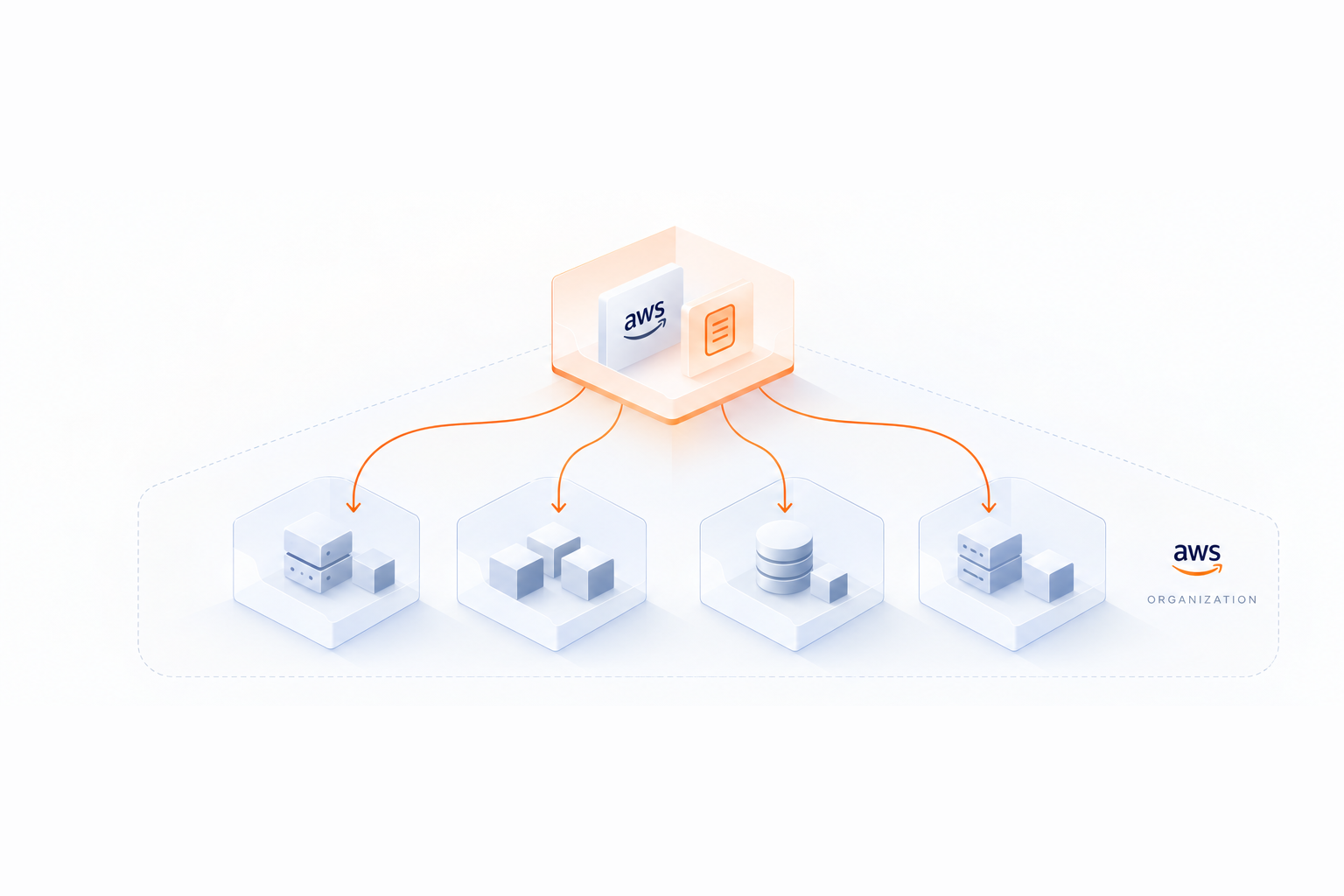
AWS Savings Plans Alerts: Setup and Best Practices


AWS Savings Plans can save you up to 72% on cloud costs, but without proper alerts, you risk overspending or missing key deadlines. This guide explains how to set up alerts for:
- Expiration dates: Avoid paying On-Demand rates when plans end.
- Queued purchases: Track upcoming commitments and adjust as needed.
- Utilization monitoring: Ensure you're using your plans effectively.
You'll also learn how to configure these alerts in the AWS Console and automate advanced notifications using tools like CloudFormation and EventBridge. Plus, discover tips to manage alerts efficiently and how tools like Opsima can automate Savings Plans management to further reduce costs.
Prerequisites for Setting Up Alerts
Before diving into alert configuration, make sure you’ve got the right permissions and a basic understanding of AWS billing. You don’t need to be a technical wizard - just have access to the right tools and a general familiarity with the AWS console.
AWS Account and Permissions
First, ensure you can access the AWS Billing and Cost Management console, particularly the AWS Cost Management section. This is where you’ll manage alert subscriptions. Your IAM user must have permissions to view, create, update, and delete Savings Plans alerts.
Next, confirm that Cost Explorer is enabled for your account. This tool is essential for tracking Savings Plans expirations and queued purchases. If it’s not already active, you can enable it through the Billing Console. Keep in mind, though, that it may take up to 24 hours for data to fully populate.
If you’re planning to set up more advanced automation, you might need additional permissions for services like AWS CloudFormation, AWS Step Functions, Amazon SNS, and Amazon EventBridge. These are useful for deploying monitoring resources across both management and member accounts. Also, note that a single alert subscription can notify up to 10 email recipients, so have those email addresses ready before starting.
Understanding these permissions and tools will set you up for success in configuring alerts.
Basic AWS Billing Knowledge
It’s also important to grasp some key billing concepts to configure alerts effectively. For example, Savings Plans operate on an hourly commitment, and any unused portion of that commitment doesn’t roll over to the next hour. As Vivek Appala, Sr. Technical Account Manager at AWS, explains:
"Any unused hourly commitment within the time period of the Savings Plan isn't rolled over for future use".
Another concept to understand is the distinction between Utilization and Coverage. Utilization measures how much of your purchased commitment you’re actually using, while Coverage reflects how much of your total eligible usage is covered by the plan. These metrics are key when setting budget alert thresholds. Be aware that Utilization and Coverage data can take up to 48 hours to generate, so alerts won’t provide instant updates.
How to Configure Basic Alerts in the AWS Console
Once you have the right permissions and your billing setup is complete, setting up Savings Plans alerts in the AWS Console is quick and simple. The interface helps you manage notifications for both expiring plans and queued purchases, or use automated commitment management to handle these tasks for you.
Accessing the Billing Console
To get started, open the Billing and Cost Management console at https://console.aws.amazon.com/costmanagement/. From the left-hand menu, select Savings Plans > Overview, and then click Manage alert subscriptions. This will take you to the configuration page where you can set up your alerts for expiration and queued purchases.
Setting Up Expiration and Queued Purchase Alerts
AWS allows you to select from four notification intervals: 1, 7, 30, and 60 days before an event, plus an automatic alert on the expiration date itself. For the best coverage, choose all the intervals to ensure you have plenty of time to review and renew your plans. You can input up to 10 email addresses - it's a good idea to include a shared team email to ensure no alerts are missed if someone leaves the team.
Expiration alerts provide key details like the Savings Plan ID, type, commitment amount, and the savings generated in the last month. You can click on the Savings Plan ID to view its details and use the Renew Savings Plan button to add a matching replacement plan to your cart. The new plan will start one second after the current one expires.
For queued purchase alerts, AWS gives you a final opportunity to review any scheduled commitments. If necessary, you can cancel or adjust these queued purchases before they take effect.
Saving and Testing Alert Configurations
Once you’ve set up your preferences, double-check the email addresses for accuracy. Then, click Save to activate the alerts. Testing the configuration is a smart step to ensure everything works as expected. As Juan Cabrera, Senior Product Manager at AWS, notes:
"Once you're satisfied with the preferences, you can click on 'Save' to begin receiving alerts".
After saving, AWS will monitor your Savings Plans and send notifications based on your settings. If you were subscribed to Reservation Expiration Alerts as of November 5, 2020, you were automatically enrolled in Savings Plans Alerts. However, it’s still a good idea to visit the console and confirm that the recipient list is up to date.
Advanced Alerts with CloudFormation and Automation
If your organization needs more than just basic expiration notifications, AWS CloudFormation can help by setting up monitoring systems to track Savings Plans utilization and send custom alerts. This automation is a key component of how to align cloud commitments with real-time usage to prevent waste. This is especially helpful during the 7-day return window for Savings Plans with hourly commitments of $100 or less. These advanced configurations build upon the basic alert setups discussed earlier, though native tools have limitations compared to automated third-party platforms.
Deploying CloudFormation Stacks
CloudFormation templates simplify the automation of monitoring systems across your AWS organization. The setup typically integrates AWS Step Functions for orchestration, Amazon EventBridge for event-driven triggers, and Amazon SNS for email notifications. Resources are deployed in both the management account (to aggregate data) and member accounts (to capture local purchase events).
One standout feature is EventBridge’s ability to capture "State Change Alert" events. These alerts notify you proactively - either 1 or 7 days in advance - when a Savings Plan is about to transition states (e.g., from active to retired or from queued to active).
Customizing Alert Parameters
Once the CloudFormation stacks are deployed, you can tailor alert settings to fit your organization’s specific needs. Key parameters include:
- Utilization threshold: Typically set between 80% and 95%, this determines when an alert should trigger.
- Lookback period: Often set to 7 days, this focuses on newly purchased Savings Plans.
- SNS topic email address: For example, finops-alerts@company.com can be designated to receive alerts.
- Notification frequency: Choose between daily or hourly checks, depending on how often you want EventBridge to run the automated processes.
Testing Automated Alerts
After deploying the CloudFormation stack, it’s important to test its functionality. In the AWS Step Functions console, locate your deployed state machine and manually trigger an execution by selecting "Start execution." Check the execution details and graph view to ensure each step completes successfully and that SNS notifications are sent.
To verify the stack deployment, you can check the CloudFormation console or run the following command:
aws cloudformation describe-stack-events --stack-name [stack-name]
This will confirm that all resources have reached the CREATE_COMPLETE status. Don’t forget to ensure that all email recipients confirm their SNS subscriptions by clicking the confirmation link sent to their inboxes.
Best Practices for Managing Alerts

AWS Savings Plans Alert Types: Distribution Strategy and Timing Guide
After setting up your Savings Plans alerts, the next step is managing them effectively to stay informed without overwhelming your team. Striking the right balance between staying updated and avoiding notification overload is key.
Monitoring Utilization Regularly
Daily utilization budgets are a great way to catch potential issues early. Configure notifications to trigger when your Savings Plans utilization dips below 80–90%. This range provides an early warning to investigate whether you've overcommitted or need to optimize AWS costs through smart commitment management or if your usage patterns have shifted. Keep in mind that AWS Budgets updates data three times daily, so there may be slight delays in the alerts.
Using AWS Budgets for Additional Alerts
While this guide focuses on standard Compute and SageMaker options, understanding AWS Database Savings Plans is equally important for a comprehensive alerting strategy.
While Savings Plans alerts cover lifecycle events like expirations and queued purchases, AWS Budgets can offer more detailed insights into performance. Consider setting up two types of budgets:
- Utilization Budgets: Track how much of your commitment is being used.
- Coverage Budgets: Monitor the percentage of eligible instance hours covered by Savings Plans.
Coverage budgets, in particular, can help identify when your on-demand spending starts to rise unexpectedly. You can also adjust the reset period - daily, monthly, quarterly, or annually - to match your fiscal cycles and avoid unnecessary noise from short-term usage spikes. These budget alerts add depth to your monitoring strategy, complementing your primary notifications with actionable performance data.
Avoiding Alert Fatigue
The effectiveness of alerts depends on how they're distributed. Bombarding your team with notifications routed to a single email can reduce their impact. Instead, organize alerts by purpose and urgency:
- Send 60-day and 30-day expiration alerts to your finance team for long-term planning.
- Route 7-day and 1-day expiration alerts to your operations team via SNS or AWS Chatbot (integrated with tools like Slack or Chime) for immediate action.
- Use SNS to trigger automated responses or escalate issues to on-call engineers when utilization drops below 80%.
Keep in mind that each alert subscription supports up to 10 email recipients, so plan your distribution accordingly.
As Juan Cabrera, Senior Product Manager at AWS, aptly stated:
"The faintest ink is better than the best memory".
This highlights the importance of clear, timely notifications that keep teams focused without overwhelming them.
| Alert Type | Purpose | Recommended Channel | Timing |
|---|---|---|---|
| Expiration Alert | Long-term renewal planning | Email to finance team | 60 and 30 days prior |
| Expiration Alert | Immediate renewal action | SNS to operations team | 7 and 1 day prior |
| Queued Purchase Alert | Final review before commitment | Email to approvers | 7 and 1 day prior |
| Utilization Budget | Identify underutilization | SNS/Chatbot for urgent drops | Daily checks (below 80–90%) |
| Coverage Budget | Monitor on-demand exposure | Email for weekly review | Weekly or monthly |
How Opsima Improves Savings Plans Management
Opsima goes beyond simple alerts by automating the management of Savings Plans commitments. While alerts notify you when action is needed, they don't handle the actual optimization. Opsima fills this gap by automating decisions, reducing manual effort, and cutting down on cloud expenses.
Automated Commitment Management
With native alerts, tasks like renewing, modifying, or purchasing commitments require manual effort. Opsima eliminates this hassle by automating the entire process for both Savings Plans and Reserved Instances. This automation can lower AWS cloud costs by up to 40%, ensuring you consistently pay the lowest possible rate for the resources you're already using.
Easy Integration and Flexibility
Opsima is compatible with key AWS services such as EC2, ECS, Lambda, RDS, ElastiCache, OpenSearch, and SageMaker. You can get started in just 15 minutes and adjust as your usage evolves. Plus, Opsima takes advantage of AWS's 7-day return policy, allowing for quick corrections if your usage changes unexpectedly after a purchase.
Security and Transparency
Opsima prioritizes security by operating without accessing your customer data or applications. Instead, it uses specific IAM permissions for Savings Plans APIs and Cost Explorer. This ensures transparency while managing commitments. By automating these processes, Opsima reduces the workload for FinOps teams, eliminating the need for constant monitoring of utilization budgets and coverage gaps when usage dips below 80–90%. This streamlined and transparent approach enhances your Savings Plans management, helping you seize every opportunity to save on costs.
Conclusion
AWS Savings Plans alerts help prevent unnecessary spending and keep costs under control. Since Savings Plans are calculated hourly and any unused portions expire, these alerts are key to spotting low usage and avoiding expensive On-Demand rates.
Savings Plans can cut cloud costs by as much as 72% compared to standard On-Demand pricing. But to truly benefit from these savings, managing alerts effectively is essential.
That said, alerts alone only highlight when something needs attention - they don’t fix the underlying issues. FinOps teams still spend a lot of time and effort manually monitoring utilization, planning renewals, and making additional purchase decisions.
For a more efficient solution, pair AWS alerts with Opsima or other FinOps software. While AWS alerts provide visibility with expiration warnings and usage tracking, Opsima takes it further by automating the management of Savings Plans and Reserved Instances. From purchasing to renewals and optimization, Opsima reduces manual work and ensures you always get the best rates. You can even estimate your savings to see the potential impact on your next bill.
This combination - AWS alerts for transparency and Opsima for automation - offers a smarter way to manage cloud spending. Together, they can lower costs by up to 40% while allowing flexibility as your needs change.
FAQs
Which AWS permissions do I need to set up Savings Plans alerts?
To set up Savings Plans alerts, you'll need to configure AWS Identity and Access Management (IAM) permissions. Start by granting access to the Billing and Cost Management console and Savings Plans resources.
Make sure the following key actions are included in your permissions:
savingsplans:DescribeSavingsPlansce:GetSavingsPlansCoveragece:GetSavingsPlansUtilizationce:CreateAlertSubscription
These permissions are essential for viewing Savings Plans details and managing alert subscriptions efficiently.
How do I choose alert timing and utilization thresholds without getting too many emails?
To keep your inbox manageable, opt for longer alert lead times - like 30 or 60 days - when setting notifications for Savings Plans expirations or purchases. Choose practical utilization thresholds, such as 50% or 60%, to ensure you're only alerted about substantial underutilization. Keep email notifications targeted by limiting recipients to key team members, and rely on budgets or reports for broader tracking. These strategies can help you stay informed without drowning in unnecessary emails.
When should I automate Savings Plans monitoring (CloudFormation/EventBridge) instead of using console alerts?
Automate monitoring of Savings Plans using CloudFormation or EventBridge to handle events like new purchases, utilization thresholds, or state changes. These tools allow for real-time, proactive, and tailored responses, enabling immediate actions such as triggering Lambda functions or sending notifications. This approach ensures dynamic and scalable cost management. For less urgent needs, like periodic reminders or queued purchase notifications, console alerts are a more suitable option.