
How to Automate AWS Resource Cleanup with Scripts


Unused AWS resources can drain your cloud budget. Automating their cleanup can save money, improve security, and simplify management. Here's what you need to know:
- Why automate? Up to 35% of cloud spending is wasted on idle resources. Automating cleanup can cut costs by 10–20% monthly through smart commitment management and reduce security risks.
- Key tools: Use Python's Boto3 SDK, AWS Lambda, EventBridge, and Systems Manager to identify and remove unused resources like EBS volumes, EC2 instances, and Elastic IPs.
- Setup essentials: Configure AWS CLI, IAM permissions, and Python with Boto3 for scripting. Test in non-production environments to avoid accidental deletions.
- Best practices: Use tagging (e.g.,
Owner,TTL) to manage exclusions, enable dry-run modes for safety, and log all actions in CloudWatch for traceability.
Automating AWS cleanup not only reduces costs but also ensures better cloud resource management. Start with small scripts, test thoroughly, and scale up for maximum efficiency.
Automate AWS Cleanup: Delete Unused Resources with Python and Boto3
Setting Up Prerequisites for Automation
AWS IAM Permissions Required for Resource Cleanup Automation
Prepare your local environment and AWS credentials to ensure your scripts can authenticate with AWS and have the right permissions to identify and remove unused resources.
Configuring AWS CLI and IAM Permissions
First, install the AWS CLI based on your operating system:
- macOS: Use Homebrew with
brew install awscli. - Windows: Download the MSI installer (AWSCLIV2.msi) from the official site.
- Linux: Run
sudo apt install awscli.
Once installed, verify the installation and configure your credentials:
aws --version
aws configure
The aws configure command will prompt you for your AWS Access Key ID, AWS Secret Access Key, default region (like us-east-1), and output format. Be sure to select json as the output format since cleanup scripts rely on structured data for processing results.
To confirm everything is set up correctly, run:
aws sts get-caller-identity
This command verifies your credentials and displays your IAM entity.
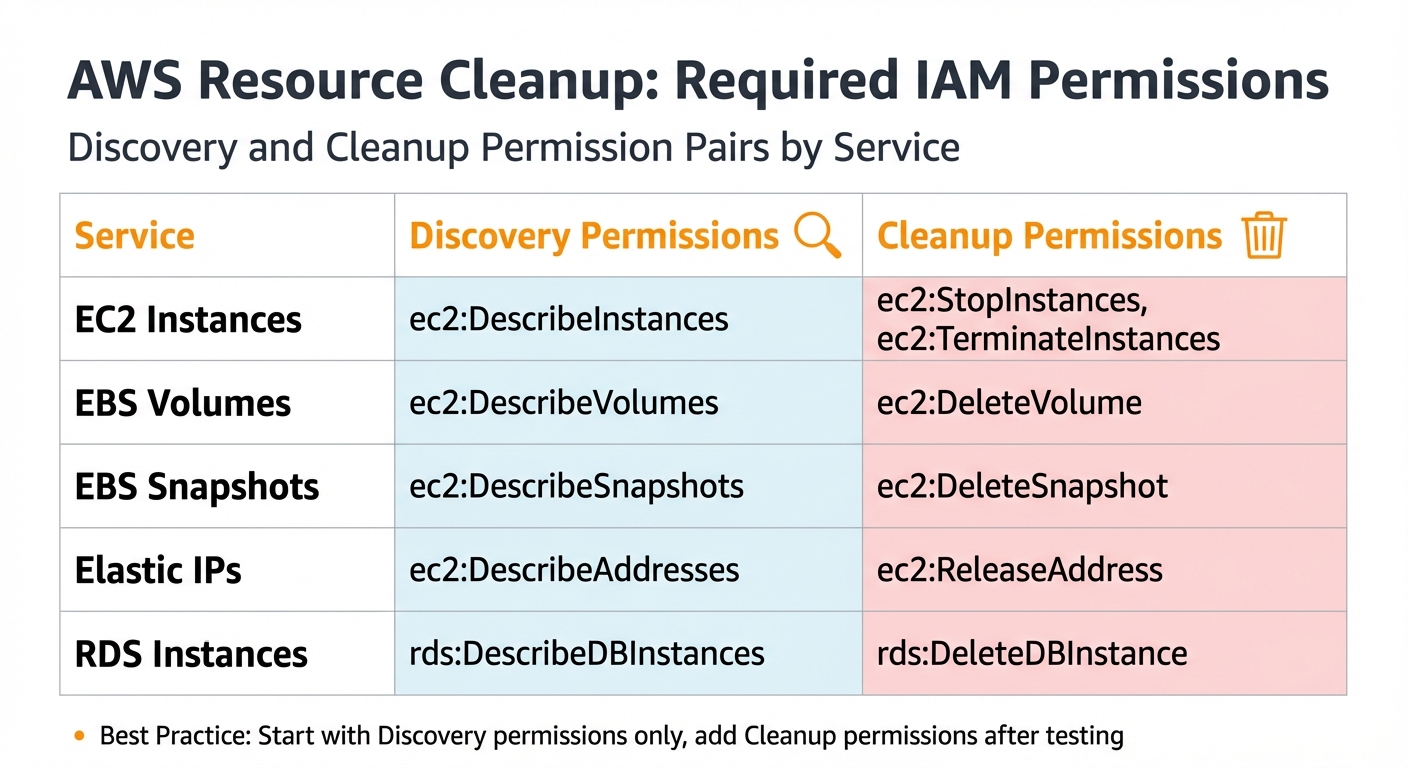
Next, assign the appropriate permissions to your IAM user or role. Your scripts will need both discovery permissions (to list resources) and cleanup permissions (to delete them). For example, to clean up EBS snapshots, you'll need ec2:DescribeSnapshots to list them and ec2:DeleteSnapshot to remove them. The table below outlines the key permission pairs required:
| Service | Discovery Permissions | Cleanup Permissions |
|---|---|---|
| EC2 Instances | ec2:DescribeInstances |
ec2:StopInstances, ec2:TerminateInstances |
| EBS Volumes | ec2:DescribeVolumes |
ec2:DeleteVolume |
| EBS Snapshots | ec2:DescribeSnapshots |
ec2:DeleteSnapshot |
| Elastic IPs | ec2:DescribeAddresses |
ec2:ReleaseAddress |
| RDS Instances | rds:DescribeDBInstances |
rds:DeleteDBInstance |
Start with read-only permissions by granting Describe and List actions. Once you’ve tested your scripts and are confident in their behavior, add Delete or Terminate permissions. This cautious approach aligns with the principle of least privilege, reducing the risk of accidental deletions.
Installing Python and Boto3
Ensure you have Python 3.7 or later installed. Installation steps vary by platform:
- macOS: Install Python via Homebrew with
brew install python. - Windows: Download the installer directly from python.org.
- Linux: Use
sudo apt install python3-pip.
After installing Python, set up Boto3, the AWS SDK for Python, by running:
pip install boto3
"Boto3 serves as the bridge between Python and AWS. It provides a rich set of functions and classes that allow developers to interact with AWS services programmatically." - Rahul Sharan
With Python and Boto3 in place, you're ready to start building and deploying cleanup scripts. Having your environment properly configured ensures a smooth development process.
Creating and Using Scripts for AWS Cleanup
Writing Cleanup Scripts with Boto3
To keep AWS environments organized and cost-effective, Python scripts can help identify and remove unused resources. For instance, EBS volumes are flagged as unused when their state is "available", meaning they’re not attached to any instance. Using boto3.client or boto3.resource, you can query resources and apply filters to pinpoint these idle assets.
In January 2023, Nandita Sahu designed a Boto3 script that scans multiple AWS regions (e.g., us-east-1 and us-east-2) to locate EBS volumes in the "available" state. Her script employs describe_volumes() to identify these volumes and deletes them using the delete_volume() method. This multi-region approach ensures no orphaned resources linger in forgotten corners of your AWS account.
For S3 bucket cleanup, Troy Dieter introduced a Python tool in May 2024. Using Boto3 and argparse, his script identifies S3 buckets based on regex patterns. It includes a dry-run mode to safely preview matches and an execution mode that empties all object versions before deleting the bucket.
"Boto3 allows developers to automate many AWS management tasks... This automation can save time and reduce the potential for human error." - Nandita Sahu, AWS Specialist
When dealing with large datasets, Boto3 paginators are essential for processing items beyond the API’s response limits. For example, the delete_objects API call can batch-delete up to 1,000 S3 objects in one request, making operations like bucket.objects.all().delete() much more efficient.
Testing and Validating Scripts
Always include a --dry-run option in your script using argparse. This feature lists the resources targeted for deletion without actually removing them. To further minimize risks during manual execution, add a confirmation prompt, such as:
if input("Delete (y/n)?") == "y":
    # Execute deletion logic
This step ensures accidental deletions are avoided.
Before running scripts in production, test them in a controlled environment, such as a development or staging account. Back up critical resources like EBS volumes by creating manual snapshots before executing mass deletion scripts. Use CloudWatch Logs to track execution results, confirming which resources were deleted and which were skipped due to safety measures.
Once the scripts are thoroughly tested, they can be deployed for broader use with AWS Systems Manager.
Deploying Scripts via AWS Systems Manager
After validating your scripts, package them as SSM Documents in JSON or YAML format. Use "Command" documents for instance-level execution or "Automation" documents for broader workflows. For example, create a document with the AWS CLI:
aws ssm create-document --content file://YourDocumentContent.json --name "CustomCleanupScript" --document-type "Command" --document-format JSON
Then, execute the document across multiple instances using the send-command API with tag-based targeting:
aws ssm send-command --document-name "CustomCleanupScript" --targets "Key=tag:Cleanup,Values=true"
Ensure the SSM Agent is running on all targeted instances and configure CloudWatch Logs to capture execution details. To automate these tasks, use SSM Maintenance Windows to schedule cleanups based on cron or rate expressions, leveraging tags or resource groups for precise targeting.
Scheduling Automated Cleanup Jobs
Using EventBridge to Trigger Cleanup Scripts
After testing and deploying your cleanup scripts, Amazon EventBridge takes over the scheduling. It's recommended to use EventBridge Scheduler instead of older rules, as it offers better scalability, timezone support, and flexible time windows.
You can set up schedules using either rate expressions (e.g., rate(1 day)) or cron expressions (e.g., cron(0 3 * * ? *)). For instance:
rate(1 day)runs the script every 24 hours.cron(0 3 * * ? *)schedules it daily at 3:00 AM UTC.- To run a script only on weekdays, use
cron(0 9 ? * MON-FRI *)for 9:00 AM Monday through Friday.
Once the schedule is defined, set your Lambda function as the target. Make sure the Lambda function has the necessary resource-based policy to allow lambda:InvokeFunction from events.amazonaws.com. If you're using the AWS Console, this permission is automatically added. For CLI setups, use the aws lambda add-permission command.
EventBridge Scheduler is reliable, with up to 185 retries and a 24-hour retention window for unsent events. For critical tasks, configure an SQS Dead-Letter Queue to capture failures. Beyond time-based schedules, EventBridge can also trigger cleanup scripts based on resource events. For example, when an EC2 instance is terminated or an EBS volume enters the "available" state, EventBridge can instantly call a Lambda function to clean up unused resources.
This scheduling approach ensures your cleanup scripts run smoothly and consistently. The next step involves integrating policy-based triggers through AWS Config for a more dynamic and real-time cleanup process.
Integrating with AWS Config for Policy-Based Cleanup
AWS Config adds another layer to your cleanup strategy by triggering actions based on policy violations. It continuously evaluates resource compliance and flags non-compliant resources, such as unencrypted EBS volumes or snapshots that exceed retention limits. When a violation is detected, AWS Config sends an event to EventBridge, which triggers a remediation Lambda function. For example, the managed Config rule EC2_SNAPSHOT_RETENTION_CHECK can identify snapshots older than a defined threshold (e.g., 30 days).
This event-driven approach ensures resources are cleaned up as soon as they breach compliance, eliminating the need to wait for the next scheduled job.
To avoid unintended disruptions, use tag-based exclusions in your scripts. For example, resources tagged with purpose: dnd (Do Not Delete) can be skipped, even if they meet cleanup criteria. Additionally, always verify resource states before deletion. For example:
- Only delete EBS volumes in the "available" state.
- Ensure snapshots aren't linked to active AMIs.
Here’s a quick reference table for common resource types across AWS regions:
| Resource Type | Unused Criteria | Safety Check |
|---|---|---|
| EBS Snapshots | Associated volume deleted or not found | Verify snapshot isn't used by an active AMI |
| EBS Volumes | State is available (unattached) |
Check for "Do Not Delete" tags |
| Elastic IPs | AssociationId is missing |
Confirm IP isn't reserved for failover |
For accounts with a large number of resources, set your Lambda timeout to at least 1 minute to ensure the script completes its scan. Direct all cleanup logs to CloudWatch Logs for tracking deleted resources and identifying false positives that may require adjustments to your filtering logic.
Best Practices for Safe and Efficient Cleanup Automation
Implementing Tagging Strategies
When automating cleanup tasks, a well-thought-out tagging system is essential to ensure that only the right resources are affected. Start by applying four fundamental tags to every resource: Owner (email or team contact), CostCenter (to track expenses), Environment (e.g., prod, stage, dev, sandbox), and Project/Application. These tags help clarify ownership and responsibility, reducing confusion around resource management.
Additional tags like TTL (time-to-live or expiration date) and Schedule (e.g., office-hours, 24x7) can guide automation workflows. If you need temporary exemptions from cleanup rules, use an ExemptUntil tag with a specific date (e.g., 2026-06-01) to delay action until the deadline.
"Make 'unused' a policy, not a project: Enforce mandatory Owner and TTL tags with AWS Config and Service Control Policies." – thecloudsolutions.com
To avoid orphaned resources, enforce mandatory tagging using Service Control Policies (SCPs). AWS allows up to 50 user-created tags per resource, so focus on tags that directly support your cleanup strategy. For instance, shutting down non-production EC2 and RDS instances during off-hours, guided by proper Schedule tagging, can cut costs by as much as 45%.
Testing in Non-Production Environments
Running cleanup scripts in production without proper testing is a recipe for disaster. Always begin with a phased approach: start by scanning resources in a read-only mode (discovery), validate metrics (assessment), test automated remediation in non-production, and finish with policy enforcement.
Your scripts should always include a dry-run mode that logs targeted actions without performing any deletions. By default, set the DRY_RUN variable to True to prevent accidental deletions during early testing.
To further minimize risks, adopt a stop-then-delete approach. Pause resources for 7 to 14 days before deletion to identify any hidden dependencies, such as an EC2 instance running periodic batch jobs. Before deleting any storage volumes or instances, create a final snapshot or AMI as a recovery option in case of errors. Also, use CloudWatch metrics over a 7-to-14-day period to define "idle" resources accurately, avoiding false positives caused by intermittent workloads.
Once testing confirms that your scripts are safe, add monitoring and logging to strengthen the process.
Monitoring and Logging Cleanup Activities
Monitoring and logging are the backbone of reliable and auditable cleanup automation. Log every action your scripts take in CloudWatch, including resource IDs, deletion statuses, and timestamps. For organizations managing multiple accounts, AWS Config Aggregators provide centralized visibility into cleanup activities across the enterprise.
AWS CloudTrail plays a crucial role by tracking every API call made by your cleanup scripts. This helps identify who created or modified resources, which is invaluable for troubleshooting unexpected deletions or addressing compliance concerns. Considering that 30% to 35% of cloud spending is often wasted on idle or unused resources, effective monitoring is not just a best practice - it’s a financial necessity.
Before executing deletions, save resource metadata in JSON or CSV formats to maintain a permanent record and prevent "zombie" assets from slipping through the cracks. Track metrics like idle resource counts, potential cost savings, and mean time-to-remediate to measure your cleanup efforts' success. For high-stakes cleanup operations, integrate with AWS Systems Manager Change Manager to require manual approval from resource owners before executing destructive actions. This ensures a complete audit trail of approvals and actions.
Conclusion
You can use scripts to automate AWS resource cleanup, slashing waste and trimming costs. With reports suggesting that 20% to 35% of cloud spending goes toward idle resources, the strategies covered here can help you reclaim a significant chunk of your budget.
"Identifying and eliminating unused resources is one of the highest-ROI activities in cloud cost optimization." – Nawaz Dhandala, Author, OneUptime
To make these techniques work effectively, it's crucial to pair technical solutions with consistent operational practices. Features like dry-run modes, detailed CloudWatch logging, and a stop-then-delete approach can help prevent errors before they become costly. Combine these with strong tagging conventions (e.g., Owner, TTL, Environment) to hold teams accountable and safely automate cleanup across multiple regions. This approach not only trims expenses but also strengthens your cloud security by quickly shutting down instances with risky configurations or outdated roles.
Begin with high-impact resources and then scale up your automation to include EC2 instances, load balancers, and snapshots. By leveraging tools like EventBridge for scheduling and Lambda for execution, you can move from occasional manual audits to a system of ongoing, policy-driven resource management. Adopting these practices will set you on the path to a more cost-efficient and secure AWS environment.
FAQs
How do I define “unused” resources safely in AWS?
Unused AWS resources refer to those that no longer play a role in active workloads or are incurring unnecessary costs. Common examples include detached EBS volumes, idle EC2 instances, stale load balancers, and orphaned snapshots.
To identify these resources, rely on tools like activity logs, utilization metrics, and lifecycle status. However, proceed with caution - manual checks are highly recommended. Automated tools can be helpful, but they might miss nuances, potentially leading to the deletion of resources that are still needed for compliance or recovery purposes.
What’s the safest way to prevent accidental deletions?
When cleaning up AWS resources, it's essential to avoid accidental deletions. A review process combined with lifecycle policies and preview features can make a big difference. For example, you can preview expiring items before finalizing deletions.
Here are a couple of smart practices to follow:
- Include confirmation prompts or dry-run options in your scripts to double-check actions.
- Use CloudTrail logs to monitor and track all actions.
These steps provide an extra layer of verification, ensuring that every deletion is deliberate and accurate.
How do I run cleanup across multiple AWS accounts and regions?
To streamline cleanup across several AWS accounts and regions, you can use Python scripts with the AWS Boto3 library. These scripts can help locate and delete unused resources, such as unattached volumes or idle Elastic IPs, across all regions. For cross-account operations, you’ll need to configure IAM roles and use role assumption where necessary. Another option is leveraging tools like AWS Config or implementing tagging strategies to make managing resources across multiple accounts more efficient.