How to Find Idle AWS Resources


Paying for unused AWS resources? Here's how to fix it.
Idle AWS resources - like EC2 instances with minimal CPU activity or unattached EBS volumes - can silently inflate your cloud bill. AWS charges for all allocated resources, even if they’re barely used. Identifying and removing these inefficiencies can save up to 30% on cloud costs.
Key tools to help you:
- AWS CloudWatch: Monitors metrics like CPU usage and network activity.
- AWS Cost Explorer: Tracks spending patterns and highlights underused resources.
- AWS Compute Optimizer & Trusted Advisor: Recommends actions for idle or oversized resources.
Examples of idle resources:
- EC2 Instances: CPU usage under 5% for 14 days.
- RDS Databases: No connections for a week.
- EBS Volumes: Fewer than 1 IOPS daily for 14 days.
Automate detection with tools like AWS Lambda and CloudWatch Alarms or consider cost management platforms like Opsima for long-term savings.
How to Perform AWS Cost & Security Audit | Automate AWS Resource Finder for Unused Resources
Using AWS Tools to Find Idle Resources
AWS Tools for Finding Idle Resources: Features and Comparison
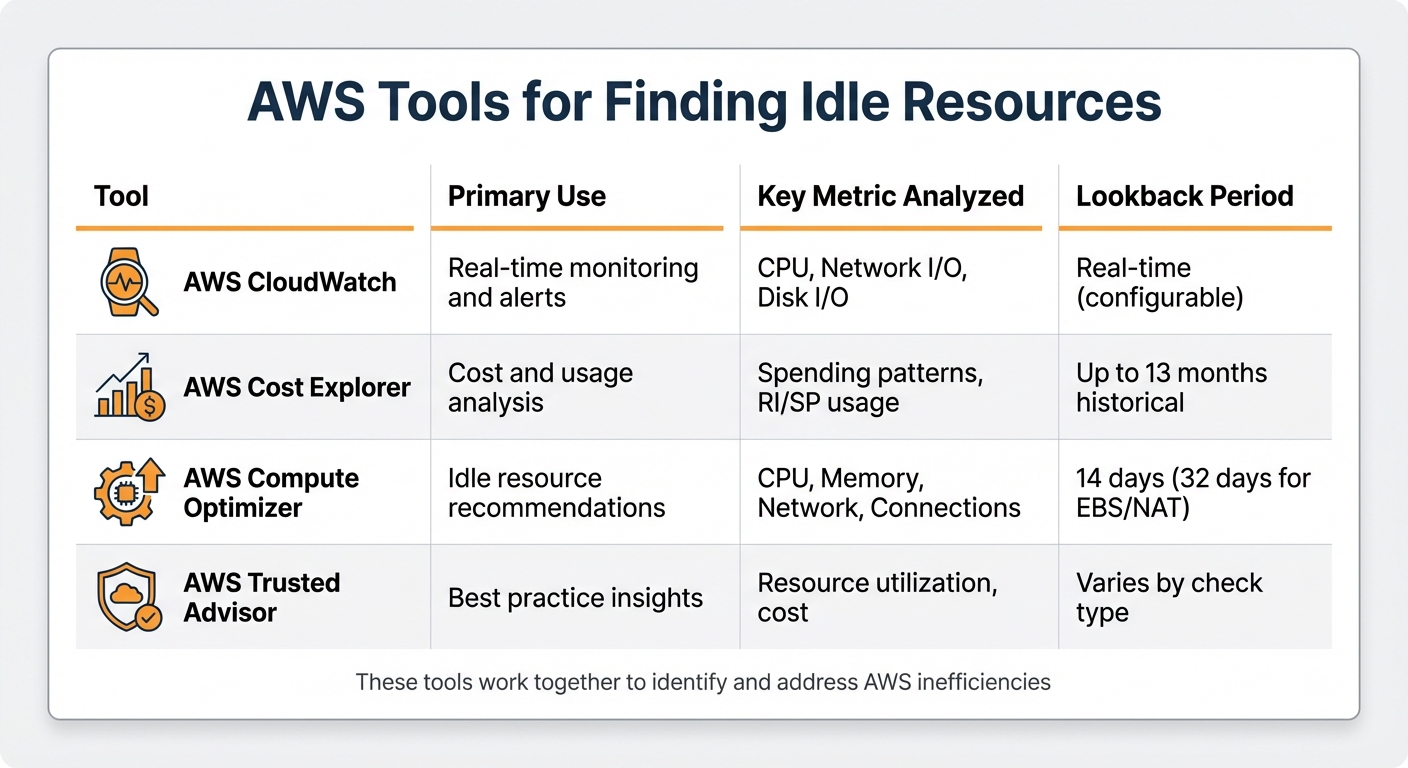
AWS offers a suite of tools designed to track usage, uncover inefficiencies, and provide insights into performance and cost trends. These tools also deliver automated recommendations to help you identify and address idle resources. Here's an overview of the key AWS tools for this purpose:
AWS CloudWatch acts as your go-to monitoring tool, keeping tabs on metrics like CPU utilization, network I/O, and disk activity for services such as EC2, S3, and RDS. By installing the CloudWatch agent, you can extend monitoring to include memory and disk metrics. To stay ahead of idle resources, set up CloudWatch Alarms to notify you when metrics like CPUUtilization or DatabaseConnections dip below a specific threshold for a sustained period.
AWS Cost Explorer takes a billing-focused approach, analyzing usage trends and costs. It provides visualizations to help you spot inefficiencies, such as cost spikes that may indicate underused resources. The "Daily" view in the service cost report is particularly useful for pinpointing anomalies. Additionally, Cost Explorer monitors Reserved Instance (RI) and Savings Plans (SP) utilization. If your utilization rate is far below 100%, it’s a clear sign that you're paying for unused capacity.
AWS Compute Optimizer and Trusted Advisor deliver automated recommendations based on data from CloudWatch. Compute Optimizer evaluates resource utilization over a 14-day period (or 32 days for EBS volumes and NAT Gateways) and flags underused resources using predefined thresholds. These recommendations update daily and are accessible through the Cost Optimization Hub, giving you a consolidated view across all your accounts.
| Tool | Primary Use | Key Metric Analyzed | Lookback Period |
|---|---|---|---|
| CloudWatch | Real-time monitoring and alerts | CPU, Network I/O, Disk I/O | Real-time (configurable) |
| Cost Explorer | Cost and usage analysis | Spending patterns, RI/SP usage | Up to 13 months historical |
| Compute Optimizer | Idle resource recommendations | CPU, Memory, Network, Connections | 14 days (32 days for EBS/NAT) |
| Trusted Advisor | Best practice insights | Resource utilization, cost | Varies by check type |
These tools work together to help you identify and address inefficiencies, ensuring that your AWS environment operates as cost-effectively as possible.
Finding Idle Resources by Service Type
Each AWS service has specific indicators that can help you quickly identify unused or underutilized resources.
Finding Idle EC2 Instances
AWS Compute Optimizer flags an EC2 instance as idle if its peak CPU usage stays below 5% and network I/O is under 5 MB/day for 14 days. For GPU instances (like G or P types), idleness is determined when the GPU remains inactive over 99% of the time, and memory usage stays below 5%[1].
Since standard CloudWatch metrics don't track memory usage, you'll need to set up the CloudWatch agent to monitor specific metrics like mem_used_percent on Linux or % Committed Bytes In Use on Windows. Instances with CPU and memory usage below 40% for four weeks (excluding burstable families like T2) may be suitable for right-sizing or shutdown. However, always confirm the instance's purpose with its owner before terminating it. Some low-activity instances might play crucial roles, such as supporting disaster recovery or running periodic batch jobs. If you're unsure about future needs, stopping the instance instead of terminating it can be a safer approach. Keep in mind, though, that EBS volumes attached to stopped instances will still generate charges until deleted.
Next, let's explore how RDS databases and EBS volumes show signs of idleness through similar metrics.
Finding Idle RDS Databases and EBS Volumes
Database and storage resources also display idleness through specific usage metrics. An RDS database is considered idle if its DatabaseConnections metric in CloudWatch stays at zero for a week, coupled with low CPU usage and minimal read/write IOPS. AWS Trusted Advisor can help identify RDS instances with no connections over seven days. For short-term savings, you can stop an idle RDS database for up to seven days. For longer-term inactivity, take a final snapshot and delete the instance.
"Amazon EBS volumes that have very low activity (less than one IOPS per day) over a period of seven days indicate that they are probably not in use." – AWS Whitepaper
For EBS volumes, idleness is flagged when they record fewer than one read/write operation per day for 14 days. Additionally, volumes that remain unattached to an EC2 instance for 32 days are also marked as idle. You can locate these volumes by filtering the EC2 Management Console for those in the "available" state. Before deleting any volume, always create a snapshot as a precaution. Automating this process with Amazon Data Lifecycle Manager can simplify management. According to a FinOps Specialist, removing idle resources can cut cloud costs by nearly 30%.
Finding Idle Load Balancers
Load balancer idleness is determined by monitoring request counts and active connection metrics. These checks complement the earlier methods for EC2, RDS, and EBS resources. Inactive load balancers often remain in place after workloads are decommissioned, continuing to incur hourly and monitoring charges. AWS Trusted Advisor flags a load balancer as idle if it processes fewer than 100 requests within seven days. You can also track the ActiveConnectionCount metric in CloudWatch - if it stays at zero for an extended period, the load balancer is likely idle.
"Load balancers often remain in place long after the workloads they supported have been decommissioned or migrated. While inactive, they continue to generate hourly charges and, in some cases, add costs for provisioned capacity or monitoring." – Juliana Costa Yereb, Senior FinOps Specialist, ProsperOps
To identify idle load balancers, use AWS CLI commands like describe-load-balancers and describe-target-health to check for load balancers with no registered targets or recent traffic. In Kubernetes environments, automatically provisioned load balancers can become orphaned after services are deleted. Once you've confirmed a load balancer is idle, delete it right away to stop the associated hourly charges.
Automating Idle Resource Detection
Manually checking for idle resources can be a tedious process prone to errors. Automating this task ensures constant monitoring and timely alerts when resources are left idle, helping to maintain cost efficiency in your AWS environment. As AWS Cloud Engineer Michael Chidiogo Okoli aptly puts it, "If cost isn't visible, it will explode."
You can use tools like Amazon EventBridge to schedule AWS Lambda functions at regular intervals (e.g., every 15 minutes or once a day) to scan for idle resources. Another option is to set up CloudWatch Alarms to track key metrics and trigger actions using Amazon SNS notifications when thresholds are breached. This event-driven approach ensures idle resources are flagged immediately, avoiding the delays of manual checks.
Thresholds should be tailored to your workload. For example, a development instance might be considered idle if its CPU usage stays below 10% for an hour, while production instances might require a stricter threshold, such as 5% CPU usage over 24 hours. Tools like AWS Compute Optimizer can aggregate usage data over 14 days to help you fine-tune these thresholds. Next, let's dive into how AWS Lambda and CloudWatch Alarms simplify this automation.
Using AWS Lambda for Automated Alerts
AWS Lambda is a key component for automating idle resource detection. With specific IAM permissions (e.g., ec2:DescribeInstances and ec2:StopInstances for EC2 instances or elasticmapreduce:TerminateJobFlows for EMR clusters), Lambda can execute logic to identify and act on idle resources. For instance, a Python-based Lambda function could check the LaunchTime of instances and, if they exceed a set idle threshold (e.g., 30 minutes for dev/test instances), trigger the stop_instances command.
Lambda can also push custom metrics to CloudWatch. For example, an EMR cluster might monitor YARN jobs or SSH connections and send a custom metric (e.g., EMR-INUSE) to CloudWatch. If the metric stays at 0 for a defined period, a cleanup action can be triggered.
This automation reduces the need to manually monitor multiple AWS consoles, ensuring idle resources are promptly addressed.
Setting Up AWS CloudWatch Alarms
While Lambda offers custom logic, CloudWatch Alarms provide a simpler, low-code way to continuously monitor your environment. You can configure alarms to track metrics like CPUUtilization or NetworkIn/NetworkOut and set up an Amazon SNS topic for instant notifications when these metrics drop below defined thresholds. To avoid false alarms, treat INSUFFICIENT_DATA as missing data. Standard monitoring collects CPU utilization data every five minutes, giving you near real-time visibility.
"Rather than letting those instances sit idle (and accrue charges), you can stop or terminate them, which can help you to save money." – Amazon Web Services
For more advanced automation, CloudWatch Alarms can trigger Amazon EventBridge rules, which in turn invoke Lambda functions for more complex actions. For example, instead of stopping an idle instance, you could hibernate it. Hibernation is particularly useful for instances with long setup times, as it preserves the instance state while eliminating compute costs. Just ensure the AWSServiceRoleForCloudWatchEvents service-linked role is active in your account so CloudWatch can perform EC2 actions on your behalf. Additionally, CloudWatch keeps a 30-day history of alarm state changes and actions, offering an audit trail for your automated processes.
Using Opsima for Cost Optimization
Once idle resources are identified and removed, the next step is focusing on cost optimization for the resources you actively use. Cutting unused resources is just the beginning - what really matters is ensuring that the resources you keep are running as cost-efficiently as possible. This is where Opsima steps in, offering automated AWS commitment management that doesn’t interfere with your infrastructure. The goal? To make sure your active resources operate under the most budget-friendly pricing terms.
While tools like AWS Compute Optimizer and CloudWatch help pinpoint resources to remove or resize, Opsima takes it further. It ensures that the resources you retain are aligned with the most cost-effective pricing models. Handling these commitments manually can be tedious and prone to mistakes, but Opsima automates the entire process, continuously updating your commitment portfolio as your usage evolves.
How Opsima Reduces AWS Costs by Up to 40%
Opsima can cut AWS costs by as much as 40% through its automated management of commitments. It tracks expiration dates, monitors utilization, and identifies coverage gaps for Savings Plans and Reserved Instances. By analyzing your usage patterns, Opsima automatically purchases and adjusts commitments, ensuring you always lock in the lowest rates for services like EC2, Lambda, RDS, ElastiCache, OpenSearch, and SageMaker.
One standout feature is the flexibility it offers - without the risk. Traditional Reserved Instances can tie you to specific instance types or regions, which can become a problem if your workload shifts. Opsima solves this by dynamically managing commitments. As your infrastructure changes - whether through scaling, moving to different regions, or adopting new services - Opsima adjusts automatically, keeping your costs optimized.
Benefits of Using Opsima
The biggest advantage of Opsima? It delivers savings without altering your infrastructure. Unlike rightsizing or removing idle resources, which may require stopping instances or reconfiguring setups, Opsima works entirely at the billing level. This means your applications, workflows, and architecture remain intact while you save money.
Additionally, Opsima supports a wide range of AWS services, including EC2, ECS/Fargate, Lambda, RDS, ElastiCache, OpenSearch, and SageMaker. The onboarding process is quick - taking about 15 minutes - and requires only read-only access to your billing and usage data. Importantly, Opsima doesn’t access your applications or data, focusing solely on financial optimization. For teams already leveraging the AWS Cost Optimization Hub to manage idle resources or rightsizing, Opsima fills a critical gap by automating the financial side of optimization, ensuring your active resources always benefit from the best rates available.
Conclusion
AWS offers a range of built-in tools to simplify the process of identifying and addressing idle resources. Tools like Compute Optimizer, CloudWatch, and the Cost Optimization Hub automatically analyze usage metrics - typically over a 14-day span (and up to 32 days for some resources) - to pinpoint underutilized resources and highlight potential savings opportunities.
The Cost Optimization Hub serves as a centralized dashboard, consolidating these insights to eliminate duplicate recommendations and prioritize actions that yield the most savings. Additionally, automation tools such as AWS Instance Scheduler and Amazon Data Lifecycle Manager take it a step further by stopping non-production instances and creating snapshots before deleting unused volumes. These features not only reduce manual effort but also maintain ongoing optimization.
Once waste is addressed, the focus should shift to maintaining cost efficiency over time. While removing idle resources cuts unnecessary spending, optimizing pricing commitments is equally important. Managing Reserved Instances or Savings Plans manually can result in underutilized commitments, especially as workloads evolve and scale.
To tackle this, advanced financial optimization tools come into play. Opsima, for instance, automates the management of pricing commitments at the billing level. By continuously adjusting your commitment portfolio to match changing usage patterns, it ensures that active resources benefit from the lowest possible rates without disrupting operations. This approach helps achieve an Effective Savings Rate (ESR), putting your team among the top performers in financial operations. Together, these strategies create a robust cost optimization framework that combines waste reduction with automated rate management for substantial, ongoing savings.
FAQs
How can I automatically identify idle AWS resources?
If you're looking to pinpoint idle AWS resources, AWS Compute Optimizer is a great tool to start with. It analyzes usage patterns over a set period (default is 14 days) to identify underused resources, such as EC2 instances, RDS databases, EBS volumes, and more. The tool offers detailed recommendations, which you can access through the AWS console or APIs, to help you optimize your cloud usage.
For even more automation, consider setting up Amazon CloudWatch alarms. By monitoring key metrics like CPU utilization, these alarms can automatically trigger actions - like stopping unused EC2 instances - saving you time and cutting unnecessary costs without requiring constant oversight.
If you prefer a third-party solution, platforms like Opsima specialize in automated cloud cost optimization. Opsima provides real-time monitoring, detects idle resources, and delivers cost-saving suggestions. Plus, it manages all this without accessing sensitive user data or affecting your infrastructure's performance.
How can I tell if an EC2 instance is idle?
An EC2 instance might be idle if it consistently shows low CPU utilization, memory usage, or network activity over a long period. Tools like AWS Compute Optimizer and CloudWatch are invaluable for keeping an eye on these metrics and spotting resources that aren't being efficiently used.
By routinely analyzing these metrics, you can identify underutilized instances and make adjustments to better manage and reduce your cloud expenses.
How does Opsima optimize AWS costs without changing your infrastructure?
Opsima helps businesses save on AWS expenses by automating cloud cost management. It pinpoints and handles idle resources, fine-tunes resource commitments, and offers real-time monitoring to keep cloud usage efficient. This approach trims wasteful spending while maintaining a stable and adaptable infrastructure.