5 Tips to Reduce RDS Backup Costs


Managing Amazon RDS backup costs can be challenging, but with the right strategies, you can significantly cut expenses without compromising data protection. Here are the key takeaways:
- Automate Snapshot Cleanup: Use AWS Backup to set lifecycle policies that delete outdated snapshots automatically, reducing unnecessary storage costs.
- Customize Retention Policies: Adjust retention periods based on workload needs. For example, production databases may need 7–35 days, while development databases might only require 1 day.
- Use Cold Storage: Move older backups to Amazon S3 Glacier tiers to save up to 85% on storage costs.
- Optimize Backup Frequency: Align backup schedules with business needs to avoid overpaying for excessive snapshots.
- Centralize Management: Use AWS Backup to manage backups across multiple services, ensuring consistency and cost control.
These steps help avoid "retention bloat", where excessive backups inflate costs, and make it easier to manage backups efficiently. Tools like AWS Cost Explorer and Opsima can further optimize your RDS strategy by tracking expenses and automating cleanup tasks. Regularly review your policies to ensure your approach stays cost-effective and meets recovery objectives.
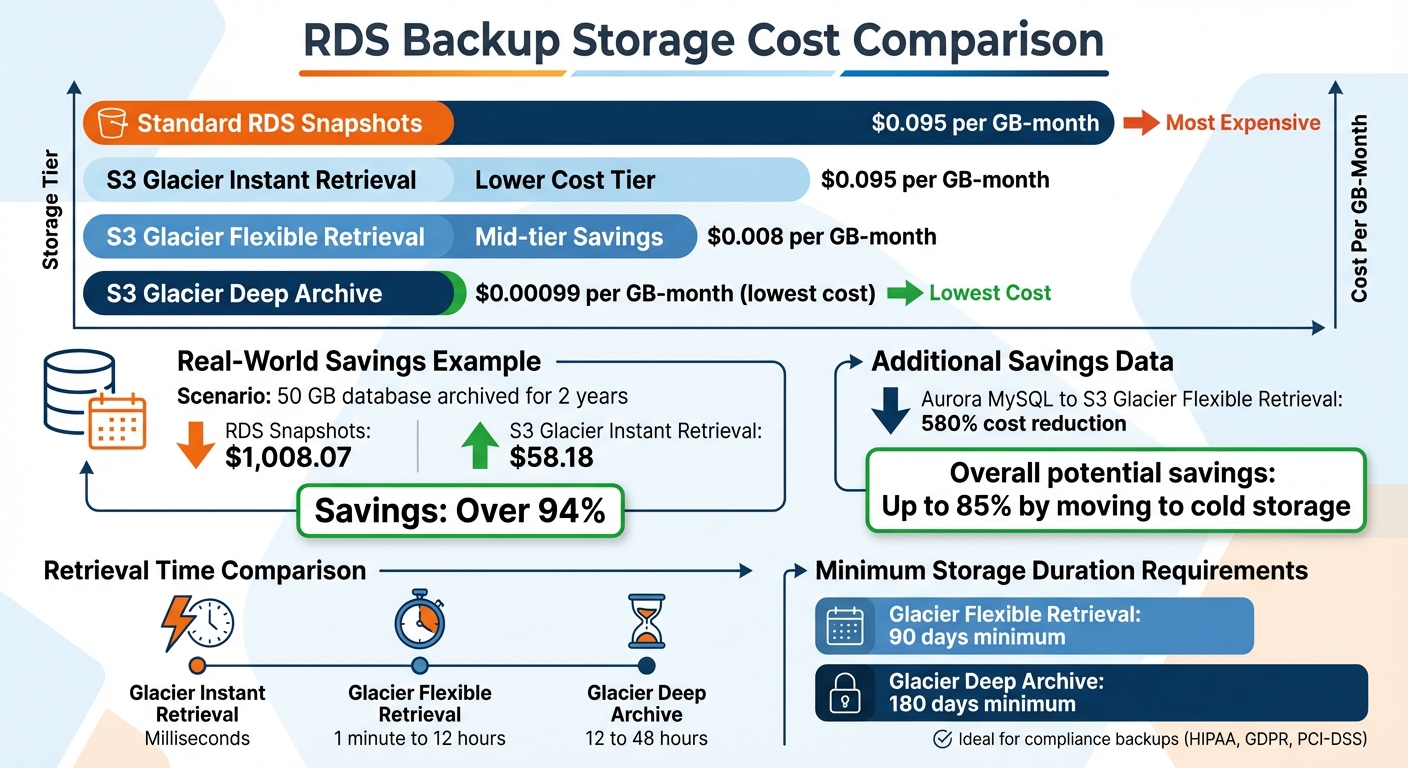
RDS Backup Storage Cost Comparison: Standard vs Cold Storage Tiers
AWS re:Invent 2025 - Boost performance and reduce costs in Amazon Aurora and Amazon RDS (DAT312)
1. Set Up Automated Snapshot Lifecycle Policies
Manually managing snapshots can lead to a buildup of unnecessary backups, which results in ongoing charges you might not even realize you're paying for. Relying on custom scripts to handle this isn't ideal either - they require constant updates and can be prone to human error.
A better solution is to use AWS Backup to implement automated backup lifecycle policies. This method ensures outdated snapshots are deleted once they surpass your retention period, so you're only paying for the storage you actually need. Plus, with resource tags, you can tailor retention rules to specific RDS instances. For example, you might keep production snapshots for 30 days while deleting development snapshots after just 7 days.
In the AWS Backup console, you can easily select RDS instances by tagging them (e.g., "Environment: Production") and set up retention rules. These rules can be based on either the number of snapshots (e.g., keep the last 10) or their age (e.g., retain snapshots for 14 days). This automation not only simplifies management but also helps control costs.
One important tip: always keep at least one prior snapshot in the same Availability Zone. This maintains the incremental backup chain, preventing the need for a full backup, which can be much more expensive. Skipping this step could lead to unnecessary costs down the line.
2. Define Retention Policies Based on Workload Type
Customizing retention policies based on workload types can help trim unnecessary backup costs, especially when paired with automated lifecycle policies.
Applying the same retention policy across all databases often leads to wasted storage. Instead, group your databases by workload and assign retention periods that align with their recovery requirements. For example, production databases typically benefit from a retention period of 7 to 35 days to meet most recovery point objectives (RPOs). On the other hand, development and test environments usually work fine with just 1 day - or even no retention at all if automated backups are disabled.
AWS provides free backup storage equal to 100% of your provisioned capacity. Opting for a 1-day retention policy for non-critical workloads can help you stay within this free tier. However, extending retention to 35 days may incur additional costs of $0.095 per GB-month.
"If the backup and retention policy is standardized across all instances, the setting could possibly contribute to additional cost."
– Donghua Luo, Senior RDS Specialist Solutions Architect, AWS
This tailored approach balances compliance requirements and cost management. For workloads that demand retention periods longer than 35 days due to compliance, consider using manual snapshots for long-term storage. Just make sure to delete outdated snapshots to avoid unnecessary charges.
3. Move Old Backups to Cold Storage
Once you've optimized retention and snapshot schedules, it's worth considering moving older backups to cold storage. This step can significantly cut storage expenses while keeping your data accessible for compliance and archival needs. For instance, standard RDS snapshots cost approximately $0.095 per GB-month in US East (N. Virginia). On the other hand, transitioning to Amazon S3 Glacier storage classes can drop costs to as low as $0.00099 per GB-month with the Deep Archive tier.
The potential savings are hard to ignore. Imagine a 50 GB database archived for two years. Sticking with RDS snapshots would cost $1,008.07, but using S3 Glacier Instant Retrieval slashes that total to just $58.18. If you're using Aurora MySQL, switching to S3 Glacier Flexible Retrieval could reduce costs by up to 580% compared to manual Aurora snapshots.
"Shifting infrequently accessed backups from warm to cold storage can cut storage costs by over 85%."
– Jessica Eisenberg, Senior Global Campaigns Manager, N2WS
To make the most of these savings, you need to identify which backups are good candidates for cold storage. Backups that are rarely accessed but must be retained for long-term compliance - such as those required under HIPAA, GDPR, or PCI-DSS - are ideal for this transition. Once backups surpass the standard retention window but still need to be kept for regulatory purposes, moving them to a Glacier tier is a smart choice. Exporting snapshots in Parquet format can also help compress data and reduce the storage footprint.
Automating this process can save time and ensure consistency. Use S3 Lifecycle policies to automatically transition backups to cold storage after they reach a certain age - commonly 60 days or more. Choose the appropriate Glacier tier based on your access needs:
- Glacier Instant Retrieval for millisecond access.
- Glacier Flexible Retrieval for retrieval times ranging from 1 minute to 12 hours.
- Glacier Deep Archive for the lowest cost, with retrieval times between 12 and 48 hours.
Keep in mind that Glacier tiers come with minimum storage duration charges - 90 days for Flexible Retrieval and 180 days for Deep Archive. Deleting data before the minimum duration still incurs the full charge.
4. Adjust Backup Frequency to Business Needs
Backup frequency should align with your business's specific needs, and a key metric to consider is the Recovery Point Objective (RPO) - the maximum amount of data your business can afford to lose, measured in time. For example, a financial trading platform might require backups every five minutes, while a development database may only need weekly snapshots.
Amazon RDS offers two main backup options: automated backups (a combination of daily snapshots and continuous transaction log backups) and manual snapshots that can be created as needed. Automated backups support Point-in-Time Recovery (PITR) within a configurable window of 1 to 35 days, with granularity as fine as five minutes. This means that even if you only take one automated snapshot per day, your database is safeguarded against data loss within a five-minute window.
Incremental snapshots store only the data that has changed since the last backup. However, in environments with high write activity, this can lead to significant storage costs. For instance, a simulation of an Oracle database with a 10% daily change rate and a 31-day retention period resulted in backup storage usage of approximately 823.84 GiB in just one month. As Donghua Luo, Senior RDS Specialist Solutions Architect at AWS, notes:
"The more frequently you perform manual snapshots, the more backup storage they consume, which can lead to additional backup storage cost".
To optimize costs and efficiency, tailor backup frequencies to the importance of each workload. For example:
- Critical systems like financial platforms may need a Multi-AZ configuration with PITR enabled and an RPO of under five minutes.
- E-commerce platforms could operate effectively with a 15- to 30-minute RPO.
- Internal business tools might only require daily automated backups, achieving a 4- to 8-hour RPO.
- Development databases may be fine with weekly manual snapshots and a 24-hour RPO.
For non-production environments, consider shorter retention periods (e.g., 1–7 days) to stay within the free backup storage quota offered by AWS or leverage AWS Database Savings Plans.
To avoid performance issues, schedule daily snapshots during periods of low database activity. Alternatively, you can use AWS Backup to set up custom schedules, such as hourly or 12-hour intervals, using cron expressions. Monitoring the "RDS:ChargedBackupUsage" metric in AWS Cost Explorer can help identify when high data volatility is driving up storage costs. Tools like Opsima (https://opsima.ai) can further enhance your backup strategy by automating cost management and fine-tuning configurations for better efficiency.
5. Use AWS Backup for Centralized Management
Managing backups across multiple RDS instances and other AWS services can quickly become disorganized. AWS Backup simplifies this process by centralizing backup management across various services, eliminating the need for custom scripts or individual setups for each instance. As Jeff Barr, Chief Evangelist at AWS, puts it:
"Using a combination of the existing AWS snapshot operations and new, purpose-built backup operations, Backup backs up EBS volumes, EFS file systems, RDS databases, DynamoDB tables, and Storage Gateway volumes".
This unified approach not only streamlines operations but also directly supports cost-saving measures by automating and standardizing backup policies.
With policy-driven automation, AWS Backup allows you to create backup plans that define frequency, backup windows, and retention periods - stretching up to 100 years if needed. For example, tag-based assignments make the process seamless by automatically including instances labeled with Backup=true. This prevents common issues like missed backups or redundant backups, both of which can inflate costs unnecessarily.
Additionally, centralized lifecycle management helps automate tasks like moving backups to cold storage or deleting expired recovery points. These features ensure that backups remain both cost-efficient and compliant. By integrating with AWS Organizations, you can enforce consistent backup policies across all your accounts. Costs are tied directly to the storage consumed by the services.
To keep your backup workflow efficient, avoid scheduling AWS Backup during RDS maintenance windows, as backups can't usually start during these times. Also, set retention periods to at least 7 days to sidestep extra charges that can arise from very short-term backups. For added security, AWS Backup Vault Lock enforces a WORM (Write Once, Read Many) policy, ensuring backups remain tamper-proof and undeletable.
Conclusion
The strategies discussed above offer practical ways to manage RDS backup costs effectively without compromising data protection. The key lies in using AWS tools wisely. By setting up automated snapshot lifecycle policies, customizing retention periods for specific workloads, utilizing cold storage for long-term needs, aligning backup frequency with business demands, and centralizing management through AWS Backup, you can significantly lower costs while keeping recovery capabilities strong.
Failing to adopt these practices can lead to unnecessary expenses from backup retention bloat. As highlighted earlier, tailoring backup retention and frequency to your workload is essential for cost efficiency. Your approach should balance business risks with recovery needs.
"Your backup strategy is only as good as your last successful restore. Test regularly, monitor continuously, and adjust based on actual RTO measurements."
Make it a routine to review your backup policies every quarter. Use AWS Cost Explorer to track expenses, apply cost-allocation tags for better budgeting, and automate the cleanup of outdated snapshots. These steps help eliminate waste and provide better visibility into your backup spending.
Frequent policy reviews and consistent monitoring ensure your strategy evolves with your environment. To maintain long-term cost control, consider using Opsima (https://opsima.ai) to automate and optimize your approach - helping you achieve the lowest possible costs while keeping your data protection intact.
FAQs
What counts as billable RDS backup storage?
When it comes to billable RDS backup storage, this includes the space taken up by both automated backups and manual snapshots that go beyond the free tier allowance (up to 100% of your database size per region). The cost you’ll incur is influenced by several factors, such as how long you retain backups, how you manage snapshots, and the total storage size. Keep in mind, these backup storage charges will continue until you delete the backups or snapshots.
How do I choose the right RPO and retention period for each database?
To choose the right RPO (Recovery Point Objective) and retention period, think about how much data loss your business can handle and how quickly you need to recover. A longer retention period means you'll have more backups available, but it also drives up costs. Make sure your retention policy aligns with your RPO by setting backup schedules that meet your recovery targets. Periodically review and tweak these settings to strike the right balance between cost, performance, and your database needs.
When should I move backups to S3 Glacier, and which tier should I use?
When you need to store data long-term and don't plan to access it often, S3 Glacier is the way to go. For the most cost-effective solution, opt for S3 Glacier Deep Archive. However, if you anticipate needing quicker access, look into S3 Glacier Flexible Retrieval or S3 Glacier Instant Retrieval. You can also save money by setting up automatic tiering policies, like moving data to Glacier after 60 days, which helps manage costs while ensuring compliance with storage requirements.