Metrics To Spot Underutilized AWS Resources

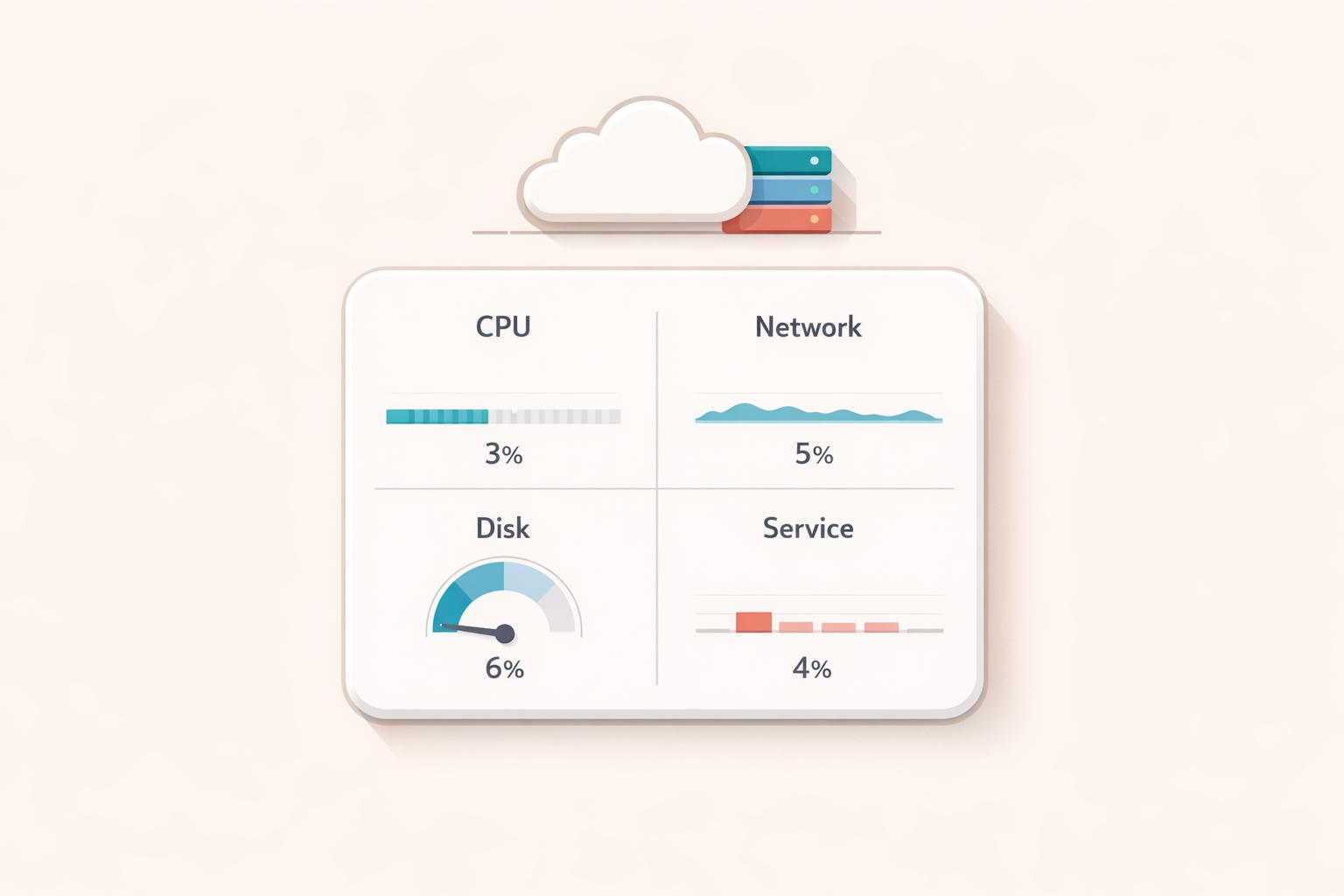
AWS environments often waste 30–35% of cloud spending on idle or underused resources like EC2 instances with low CPU activity or unattached EBS volumes. This inefficiency increases costs and complicates management. To identify these resources, focus on key metrics such as:
- EC2 Instances: Monitor CPUUtilization (below 5%), NetworkIn/Out (under 5 MB/day), and disk activity (minimal VolumeReadOps/WriteOps).
- Elastic Load Balancers: Check HealthyHostCount (zero targets) and ProcessedBytes (low traffic).
- RDS Databases: Look for CPUUtilization under 5–10%, DatabaseConnections near zero, and low ReadIOPS/WriteIOPS.
- Lambda Functions: Review Invocations (zero for 30–90 days) and ProvisionedConcurrencyUtilization (below 10–20%).
- EBS Volumes: Flag unattached volumes or those with minimal read/write operations.
AWS tools like Compute Optimizer, Trusted Advisor, and Cost Explorer simplify tracking, while CloudWatch alarms automate detection. After identifying waste, tools like Opsima can help optimize spending without changing your infrastructure. Small actions, like deleting unused Elastic IPs or resizing overprovisioned resources, can lead to significant savings.
Cloud Cost Efficiency I The Keys to AWS Optimization | S16 E2
Core Metrics for Common AWS Services

AWS Resource Utilization Metrics: Key Thresholds for Identifying Idle Resources
Tracking key CloudWatch metrics is essential for identifying underutilized resources. By analyzing CPU, network, and disk activity, you can confirm whether resources are truly idle. Here's a closer look at the critical metrics for some of the most widely used AWS services.
EC2 Instances
For EC2 instances, CPUUtilization is the go-to metric. If peak CPU usage remains under 5% over a 14-day period, the instance is likely idle. Additional metrics like NetworkIn and NetworkOut can help confirm this - instances with total network traffic below 5 MB per day usually aren't handling meaningful workloads. Similarly, VolumeReadOps and VolumeWriteOps should show minimal disk activity, ideally less than one operation per day.
Since CloudWatch doesn't track memory usage by default, you'll need to install the CloudWatch agent to monitor memory metrics like mem_used_percent on Linux or Available MBytes on Windows. For T-series burstable instances, keep an eye on CPUCreditBalance and CPUCreditUsage to determine if the instance is overprovisioned. If you're using G or P instance types with GPUs, consider the instance idle if GPU activity is below 1% and GPU memory usage stays under 5% for the majority of the lookback period.
These metrics provide a solid foundation for identifying idle EC2 instances.
Elastic Load Balancers
Elastic Load Balancers (ELBs) can often be left unused, particularly in EKS setups where deleting services doesn't automatically remove associated resources. The HealthyHostCount metric is a clear indicator of activity - if it shows zero registered or healthy targets, the load balancer is likely idle. Even with registered targets, ProcessedBytes can reveal whether the load balancer is handling any traffic. If byte volume is near zero over a 14- to 30-day timeframe, the resource is probably idle.
Keep in mind that ELB metrics are reported in 60-second intervals only when requests are being processed, so reviewing data over extended periods is key to spotting inactivity.
RDS Databases
For RDS databases, three main metrics can highlight underutilization. CPUUtilization consistently below 5–10% suggests excess capacity. DatabaseConnections near zero over 7–14 days indicates that no active workload is using the database. Combining this with low ReadIOPS, WriteIOPS, and CPU usage provides a clear picture of inactivity.
AWS Compute Optimizer uses a 14-day lookback period to flag idle databases, but it's important to double-check before decommissioning. Ensure the database isn't a read replica or part of an Aurora Global Database's secondary cluster. If Performance Insights is enabled, the DBLoad metric can offer additional details on session activity. For Aurora instances that might need to be retained, migrating to Aurora Serverless could be a good option, as it allows the database to scale down to zero when idle.
Metrics for Specialized AWS Services
Specialized AWS services require custom metrics to identify inefficiencies and eliminate waste. Lambda functions, ElastiCache clusters, OpenSearch instances, and EBS volumes each have unique indicators that can reveal whether you're overpaying for unused or underutilized capacity.
Lambda Functions
When it comes to Lambda functions, Invocations is the clearest metric to start with. If invocation counts remain near zero for 30–90 days, the function is likely unused. For critical but infrequent tasks, extend the monitoring period to 60–90 days. Also, look at Duration, which measures processing time - a negligible duration might mean the function is being triggered unnecessarily or isn't performing meaningful work.
If you're using provisioned concurrency, monitor ProvisionedConcurrencyUtilization to see how much of the allocated capacity is actually being used.
AWS advises, "Consistently low values for ProvisionedConcurrencyUtilization may indicate that you over-allocated provisioned concurrency for your function".
A ProvisionedConcurrencyUtilization below 10–20% or large memory gaps (tracked via memory_utilization with Lambda Insights) can indicate over-provisioning. Before decommissioning any function, double-check its triggers - such as API Gateway routes or S3 notifications - to ensure it's not intended for rare but critical workflows. Don’t forget to clean up orphaned CloudWatch log groups to avoid lingering costs.
ElastiCache and OpenSearch Clusters
For ElastiCache and OpenSearch clusters, underutilization often shows up in metrics like CPUUtilization, which should raise concerns if it consistently stays below 5–10%. For ElastiCache, also keep an eye on EngineCPUUtilization, especially for single-threaded engines. On smaller node types (e.g., 2 vCPUs or fewer), 90% divided by the number of cores is a good high-usage threshold - so, for a 2-core node, 45% is the limit.
Connection metrics are also telling. CurrConnections (ElastiCache) and ActiveConnectionCount (OpenSearch) reveal whether applications are actively using the cluster. Zero or near-zero connections signal idleness. In ElastiCache, high FreeableMemory paired with zero SwapUsage suggests over-provisioning. Similarly, if Evictions remain at zero and memory usage is low, the cluster is likely oversized. Minimal NetworkIn, NetworkOut, and low read/write throughput further confirm underutilization.
EBS Volumes
EBS volumes also have specific metrics that help identify inefficiencies. Unattached volumes in an "available" state for over 32 days are automatically flagged as idle by AWS tools. For attached volumes, VolumeReadOps and VolumeWriteOps below one operation per day over 14 days indicate the volume isn’t being actively used.
Provisioned IOPS volumes (io1/io2) require a closer look. To calculate IOPS utilization, sum one-minute read/write operations, divide by 60, and compare the result to the Provisioned IOPS setting. If average or median utilization falls below 2% over a week, it’s a clear sign of over-provisioning.
According to the AWS Storage Blog, "Right-sizing Amazon EBS volumes is critical - under-utilized volumes means wasted resources, and over-utilized volumes don't leave enough room for spiky workloads".
For gp3 volumes, check if provisioned throughput and IOPS consistently exceed actual workload needs. If utilization is low, consider reducing provisioned IOPS or switching to a different volume type.
Methods for Detecting Underutilized Resources
When it comes to spotting underutilized resources, AWS provides a range of tools and strategies that make the process more efficient. From built-in AWS services to automated alarms, these methods can help you optimize your cloud usage and reduce unnecessary costs.
AWS Tools for Validation
AWS Compute Optimizer is a go-to tool for pinpointing idle or underutilized resources. It reviews CloudWatch metrics - like CPU, memory, network, and I/O - over a 14-day period, which can be extended up to 93 days if enhanced infrastructure metrics are enabled. This tool is particularly effective for identifying idle EC2 instances, unused EBS volumes, and ECS services running on Fargate. However, keep in mind that without the CloudWatch agent, memory metrics won’t be included, which can limit its effectiveness for workloads that heavily rely on memory.
AWS Cost Optimization Hub simplifies the process by consolidating recommendations from various tools, like Compute Optimizer and Trusted Advisor, into a single dashboard. This unified view helps you spot opportunities for cost savings, factoring in your Reserved Instances and Savings Plans.
AWS Trusted Advisor offers real-time insights into idle resources, such as unassociated Elastic IP addresses (which can cost about $3.60 per month) and underutilized EBS volumes. Meanwhile, AWS Cost Explorer provides a detailed look at your spending patterns, helping you identify low-usage costs or unusual spikes that might indicate waste.
For more accurate results, it’s a good idea to cross-check findings. Combine CloudWatch metrics with CloudTrail logs to see if a resource was recently modified, and use VPC Flow Logs to confirm whether it’s still part of active network traffic.
Once you’ve validated your resource usage, the next step is setting up automated alerts with CloudWatch alarms.
Setting CloudWatch Alarms
CloudWatch alarms make it easy to automate the detection of underutilized resources. For instance, you can configure alarms to trigger if CPUUtilization stays below 10% for 14 to 30 consecutive days. To reduce false positives caused by short-term fluctuations, set alarms to activate only after consistent breaches of your thresholds.
These alarms can notify you via Amazon SNS or take direct actions, such as stopping, hibernating, or terminating EC2 instances. You can also use them to trigger AWS Lambda functions for more complex workflows - like creating a snapshot of an EBS volume before deleting it.
How Opsima Helps with AWS Cost Optimization
Once you've pinpointed underutilized AWS resources using metrics and CloudWatch alarms, the real game-changer lies in fine-tuning your spending commitments. It's not just about identifying inefficiencies - it’s about maximizing the value of what you’re actively using. That’s where Opsima steps in, offering automated solutions to lower your AWS costs by optimizing Savings Plans and Reserved Instances.
Opsima takes the hassle out of managing these commitments. Without requiring any changes to your infrastructure or workloads, it works behind the scenes to handle commitment decisions. Your applications continue running as they are, while Opsima ensures you're getting the best rates possible.
This service supports key AWS offerings like EC2, ECS, Lambda, RDS, ElastiCache, OpenSearch, and SageMaker - the same services where you'd typically track usage metrics. By using Opsima’s optimized strategies, businesses often achieve up to 40% savings on their cloud expenses.
What’s more, Opsima adapts as your usage patterns shift. Whether you're scaling up Lambda functions or resizing RDS instances, the flexibility remains intact. The setup process is quick and straightforward, taking about 15 minutes. Plus, Opsima doesn’t access your data or applications, ensuring your security while it works to optimize your costs.
Conclusion
Keeping an eye on the right metrics is key to managing AWS costs effectively. With an estimated 30–35% of cloud spending going to waste on idle resources, tracking metrics like CPU utilization, network I/O, and database connections can help prevent unnecessary expenses. Idle resources often go unnoticed because they don’t typically cause outages or performance issues, but they quietly drive up costs over time.
AWS offers built-in tools to spot these underused resources before they become major financial burdens. By setting up CloudWatch alarms and regularly reviewing metrics across services like EC2, RDS, and Lambda, you can gain the insights needed to take quick action. Even small steps - like deleting unattached Elastic IPs or shutting down idle NAT Gateways - can lead to noticeable savings. These tools not only help you detect inefficiencies but also provide the groundwork for optimizing your cloud setup.
Finding and eliminating waste is just the first step. After addressing underutilized resources, the focus shifts to optimizing the resources you actively use. Automated solutions, like Opsima, can help ensure you're getting the best rates for your cloud resources - without requiring changes to your infrastructure or workloads.
FAQs
How do I avoid false positives when marking a resource as idle?
When identifying underutilized resources, it's crucial to avoid false positives by setting clear thresholds and considering the workload's context. For instance, you might define low CPU usage as being below 5% over a 14-day period for an EC2 instance. But CPU usage alone doesn't tell the whole story.
To get a complete picture, monitor multiple metrics like network I/O and disk activity. This approach ensures you're not overlooking important factors that could indicate the resource is actively used.
Automating the detection process with tools like CloudWatch can make this even more efficient. By customizing thresholds based on specific workload patterns, you can ensure that only genuinely idle resources are flagged, saving time and avoiding unnecessary disruptions.
What should I monitor if CloudWatch doesn’t track memory by default?
To keep an eye on memory and disk usage, you'll need to install and configure the CloudWatch Agent. This tool lets you gather OS-level metrics, such as memory usage, which aren't available in CloudWatch by default.
When should I right-size or delete a resource vs keep it and optimize rates with Opsima?
To keep your cloud costs in check, it's smart to either resize or remove resources that are consistently underused or sitting idle. For example, EC2 instances with minimal CPU usage or unattached EBS volumes are prime candidates for action. However, if a resource is underutilized but still essential, you don't have to get rid of it. Instead, tools like Opsima can help you cut costs. They manage commitments like Savings Plans, ensuring you get the best rates without needing to adjust your infrastructure.